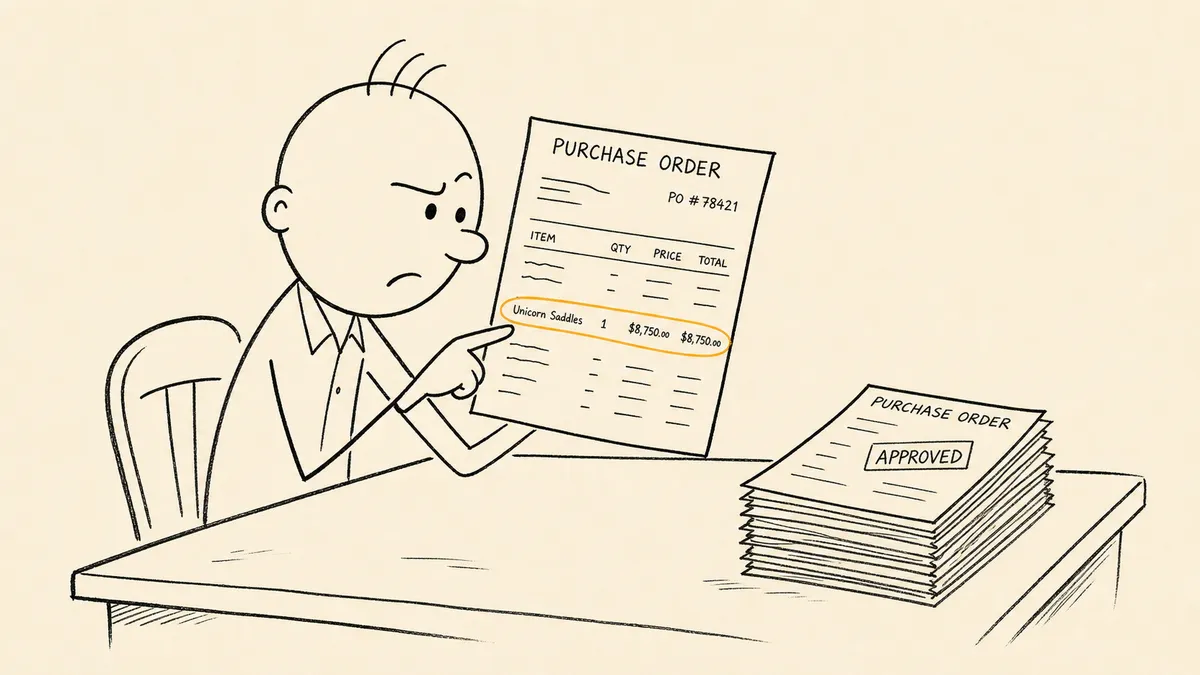
A PO approval workflow (purchase order approval workflow) is the set of steps and rules that sends a purchase order to the right people for sign-off before it goes to the vendor. Most run in six steps:
- Request. The requester submits the purchase with line items, vendor, cost center, and GL coding.
- Validation. Finance or the system checks the budget and confirms the vendor is approved.
- Routing. Rules send the request to approvers based on amount, department, category, and vendor risk.
- Approval. Each approver approves or rejects, and the system records who did it and when.
- Issue. The approved PO gets a number and goes to the vendor.
- Close the loop. The requester is told, and receiving and accounts payable get the PO so the invoice can be matched and paid.
Who approves at step 3 comes from an approval matrix. Below you’ll find each step in more detail, a sample matrix to adapt, a template for documenting the workflow, and the places these workflows break once real purchases run through them.
What a PO approval workflow covers
The approval workflow is one part of procure-to-pay. It sits between the person who needs something and the vendor who will supply it. Receiving, three-way match, and payment come later and have their own controls.
The people involved:
- Requester. Needs the goods or service and submits the request with the quote or statement of work attached.
- Budget owner. Owns the spending authority for the cost center being charged.
- Department head. The same person as the budget owner at smaller companies; separate at larger ones.
- Finance. Checks GL coding, budget, and policy before or alongside the approvals.
- Procurement. Owns the vendor relationship, the approved vendor list, and any contract reference.
At a small company two people may hold all five roles. The workflow should still name them, because an auditor asks who actually approved, not who was allowed to.
PO approval vs. purchase requisition approval
Some companies approve twice. A purchase requisition (the internal request to buy) is approved first, then procurement turns it into a PO, which needs its own sign-off if the price or vendor changes along the way. Smaller teams skip the requisition and approve the PO directly. Either works, as long as the policy says which document carries the approval an auditor will check. If you run requisitions, purchase request software covers that front half.
The PO approval process, step by step
- Request submission. The requester enters line items, vendor, GL coding, and supporting documents (quotes, statements of work, contract references). Incomplete requests go straight back to the requester with a reason.
- Validation checks. The system or a finance reviewer confirms budget is available on the GL code, the vendor is on the approved list (or starts new-vendor onboarding if not), and any required contract exists.
- Routing. The request goes to the approvers the matrix names. ERP approval modules model this with approver amount limits. Microsoft’s Business Central purchase approval setup gives each approval user an approver, a substitute approver, and amount limits.
- Approval capture. Each approver in the chain approves or rejects, and the decision is recorded against the PO with a timestamp and comments. In NetSuite’s PO Approval Workflow SuiteApp, a request moves to a next approver when the current approver’s limit is below the PO total, and it is locked against edits while it waits.
- PO issuance. With all approvals in, the PO gets its number, its status changes to Approved, and it goes to the vendor by email, EDI, or vendor portal.
- Closing the loop. The requester is notified. Receiving and AP inherit the PO with its approval history, so three-way match has what it needs when the invoice arrives.
A sample PO approval matrix
An approval matrix is the table that says who must approve which purchases. The amounts below are an example to adapt, not a standard. Set your own from your last twelve months of POs (more on that below).
| PO amount | Who approves | Notes |
|---|---|---|
| Under $1,000 | Budget owner | Can auto-approve when it’s a catalog item or on an existing contract |
| $1,000 to $9,999 | Budget owner, then department head | |
| $10,000 to $49,999 | Department head, then controller or finance lead | Finance confirms coding and budget |
| $50,000 and above | All of the above, then CFO | Your policy may add the CEO or board above a set amount |
Amount alone misses risk that has nothing to do with dollars, so most matrices add conditions that pull in a specialist at any amount:
| Condition | Added reviewer |
|---|---|
| Software, or any vendor that will hold company or customer data | IT or security |
| Vendor not on the approved vendor list | Procurement, through vendor onboarding |
| Contract longer than 12 months, or with auto-renewal | Legal |
| Capital expenditure | Finance, for fixed-asset treatment |
| Request exceeds remaining budget for the cost center | Budget owner and finance |
Two rules keep the matrix honest. First, every PO must match some route. A PO that matches no rule has to land somewhere; in Adaptive, for example, a PO that matches no workflow is approved automatically unless you set a fallback. Second, name a delegate for every approver, so an absence never blocks the chain.
A PO approval workflow template
Use this to document your workflow before you build or automate it. Each row is one step; the last column is what an auditor will ask to see.
| Step | Owner | What happens | What gets recorded |
|---|---|---|---|
| 1. Request | Requester | Form captures vendor, line items, cost center, GL code, quote | Requester, date, attachments |
| 2. Validate | Finance or automation | Budget, vendor list, and contract checks run | Result of each check |
| 3. Route | Automation | Matrix picks the approvers | Which rule fired and who was chosen |
| 4. Approve | Approvers | Request arrives with context; reminders and delegation on a timer | Approver, decision, time, comment |
| 5. Issue | Procurement | PO number created, PO sent to vendor | PO number, send date, channel |
| 6. Close | Automation | Requester notified; PO handed to receiving and AP | PO linked to receipt and invoice |
Where PO approval workflows break
Most guides stop after the six steps, which describe the normal case. These are the cases that cause trouble once real purchases run through:
- Approvers out of office with no delegate. The request sits, the requester chases on Slack, and someone with partial authority approves it informally. The record loses a step. Write delegation rules before you need them.
- POs that change after approval. A line is added, the vendor changes, the quantity goes up. The approval was for a different request. Decide a tolerance, and send anything above it back through routing.
- Approvals given in email or chat. The PO shows Approved with no link to the conversation. Months later, answering “who approved this and why” means searching inboxes.
- Split POs. Two $9,000 POs clear department-head approval; one $18,000 PO would have needed the CFO. Splitting to stay under a threshold is a known control weakness, and it rarely shows up until someone runs a spend-by-vendor report.
- After-the-fact POs. The invoice arrives first and someone raises a PO to match it. The approval is a formality at that point, because the money is already committed.
- Stale vendor or contract data. The vendor list hasn’t been reviewed in two years, or the contract reference points to an expired agreement. The approval clears against data that no longer fits.
Each can be patched on its own. The workflows that pass an audit are designed around these cases from the start.
How to set approval thresholds
The most common mistake is copying thresholds from a template. Thresholds should fit the shape of your own spend.
- Use your spend distribution. If 80% of your POs are under $5,000, a first threshold at $10,000 sends nearly everything to the requester’s manager and turns finance review into a formality. Pull the last twelve months of POs and place thresholds where they actually separate the population.
- Add category reviews where dollars miss risk. A $2,000 software purchase from a new vendor with data access carries more risk than a $20,000 office-supplies order on a known contract.
- Write delegation and escalation into the rule. Name the delegate, what triggers the handoff (calendar out-of-office, a manual flag, time since routing), and where it goes if the delegate doesn’t act either.
- Keep levels in proportion. Three signatures on a $1,500 PO add wait time without adding much review. Most of what the third signer would catch, the first two already saw.
To test a rule set, run a sample of last year’s POs through it on paper. Count how many would have routed sensibly and how many would have stalled, escalated badly, or skipped a review they needed. Fix the rules before you build them into a system.
What to automate and what to keep with people
Automation should take over the chasing and record-keeping and leave the judgment with people.
Automate:
- The routing decision, based on your written matrix.
- Budget and vendor checks against live ERP data.
- Reminders to approvers, with the full request attached, on the channel they actually read.
- Recording approver, time, and comments against the PO.
- Notifications back to the requester and forward to receiving and AP.
Keep with people:
- The approval itself. The approver is committing company money, and that signature is the point of the workflow.
- New situations: a new vendor, a new category, an unusual rush. Route these to a person with full context instead of approving them on a loose rule.
- Any call about whether to split, defer, or escalate a request.
Whether your current process is worth formalizing at all is its own question; this guide to what’s worth automating treats it as a cost calculation.
Where the approval workflow should live
The ERP holds the PO record, and its approval module handles the standard route well. The work around it happens between systems: the request that arrives in Slack, the quote in someone’s inbox, the budget check, the reminder to an approver who is traveling, the delegate when nobody answers. That work needs a home, and the category built for it is an orchestration layer: a system above your ERP and messaging tools that listens for requests, gathers the context, brings in the right person, and writes the result back to the PO.
FlowRunner is built for that layer. A PO approval flow in FlowRunner looks like this:
- The request arrives from a FlowRunner form, a Slack message, or an email.
- The flow checks budget and vendor status in your ERP, such as NetSuite or Acumatica, and applies your matrix.
- It uses human-in-the-loop, an execution pattern where AI agents pause autonomously, assemble the relevant context and the decision choices available, route to a human via their preferred channel, and resume the moment the human responds. The approver gets the request in Slack, email, WhatsApp, or by phone, with the quote and remaining budget attached, and can ask the paused flow for details before deciding.
- The run waits for the answer for up to 30 days on the Free, Starter, and Growth plans and up to a year on Professional and above. You set when it sends a reminder and when it goes to the delegate.
- Once approved, the flow writes the decision back and can create the PO, for example in Xero, then notifies the requester.
The same pattern works on the AP side. The Acumatica AP workflow and vendor invoices into Acumatica with exception routing show it for bills, and vendor matching before a NetSuite bill is created catches duplicates before they post. For a wider view of buying PO software, see purchase order automation software and how FlowRunner compares with Procurify for procurement automation.
Metrics to track
Once the workflow runs, a few numbers tell you whether it’s working:
- Approval cycle time, from submission to issued PO.
- Share of POs approved within your target time, by approver and by matrix level.
- After-the-fact POs as a share of POs and of spend.
- Rejections and send-backs, by reason, to find requests that arrive incomplete.
- Near-threshold clusters, meaning several POs to one vendor just under a threshold in a short window, which is how split POs show up.
A checklist for your current PO approval workflow
Run these questions against the workflow you have today:
- Can you show who approved any PO from the last 12 months without leaving the ERP?
- Are thresholds reviewed against actual spend at least once a year?
- Is there a written delegation rule for planned and unplanned absences?
- Do rush orders, new vendors, and contract overruns have a defined path?
- Does a changed PO go back through approval above a set tolerance?
- Is approval evidence linked to the PO record, or sitting in inboxes?
A workflow that passes all six is ready to automate as it stands. If any answer is no, fix that rule first, then automate it. If you’d rather have the workflow built for you, our implementation team can set it up in your FlowRunner workspace.
Frequently asked questions
What is PO approval?
PO approval is the sign-off a purchase order needs before it is sent to a vendor. The approver confirms the purchase is needed, fits the budget, and falls within their spending authority, and the system records who approved it and when.
Who approves purchase orders?
It depends on the company's approval matrix. Small purchases usually need only the budget owner. Larger ones add a department head, then finance, then the CFO, and some categories (software, new vendors, long contracts) add IT, procurement, or legal regardless of amount.
What is a PO approval threshold?
It is the dollar amount at which a purchase order needs a higher level of approval. Set thresholds from your own spend data, at the points where the decision really changes, instead of borrowing round numbers from a template.
Does a PO need to be approved again if it changes?
It should when the amount, vendor, or line items change after approval. The approval covered the original request, so a changed PO that keeps the old approval has not really been approved. Set a tolerance for small changes and send anything above it back through routing.