Salesforce Pro Google Sheets Integration: Rows to Vetted Leads
Connect Salesforce Pro and Google Sheets so every new sheet row becomes a scored Salesforce lead, optionally as an AI agent that pauses for a sales manager before converting the lead to a contact and opportunity.
How do you connect Salesforce Pro to Google Sheets?
When a new row lands in a lead-tracking sheet, FlowRunner fires On New Row in Google Sheets, reads the row with Get Rows, and calls Create Lead in Salesforce Pro to open the record, mapping the row’s name, company, and email into the new lead. FlowRunner is a visual AI-agent orchestration platform where automations run autonomously and pause for human judgment on the steps that carry real consequence. That same connection can run as an AI agent that scores each incoming lead against your ICP criteria and pauses for a sales manager’s approval before it runs Convert Lead to Contact, the one step in the process that can’t be undone.
The problem it solves
Right now, leads probably arrive in a sheet from a form, an ad platform export, or an event list, and someone on the sales or ops team has to open that sheet, read each row, and manually create the corresponding lead in Salesforce. It happens in batches, once a day or once a week, which means a lead that should have been contacted within the hour sits untouched in a spreadsheet for however long it takes someone to notice the new row. Rows with a missing email or a blank company name get created anyway, or skipped and forgotten, because nobody is checking every field before typing the record into Salesforce.
The second problem is conversion. Once a lead is qualified, converting it to a contact and opportunity in Salesforce is irreversible: the lead record is gone, merged into an account, a contact, and an opportunity that now needs a territory rep assigned. When conversions happen ad hoc, reps end up converting the same lead twice, or converting a lead before revenue ops has verified the account doesn’t already exist, and cleaning that up costs more time than the manual export ever saved. The sheet, meanwhile, has no record of what happened to each row after it was read, so nobody can look at the tracker and tell which leads actually became real Salesforce records.
How it works: the connection
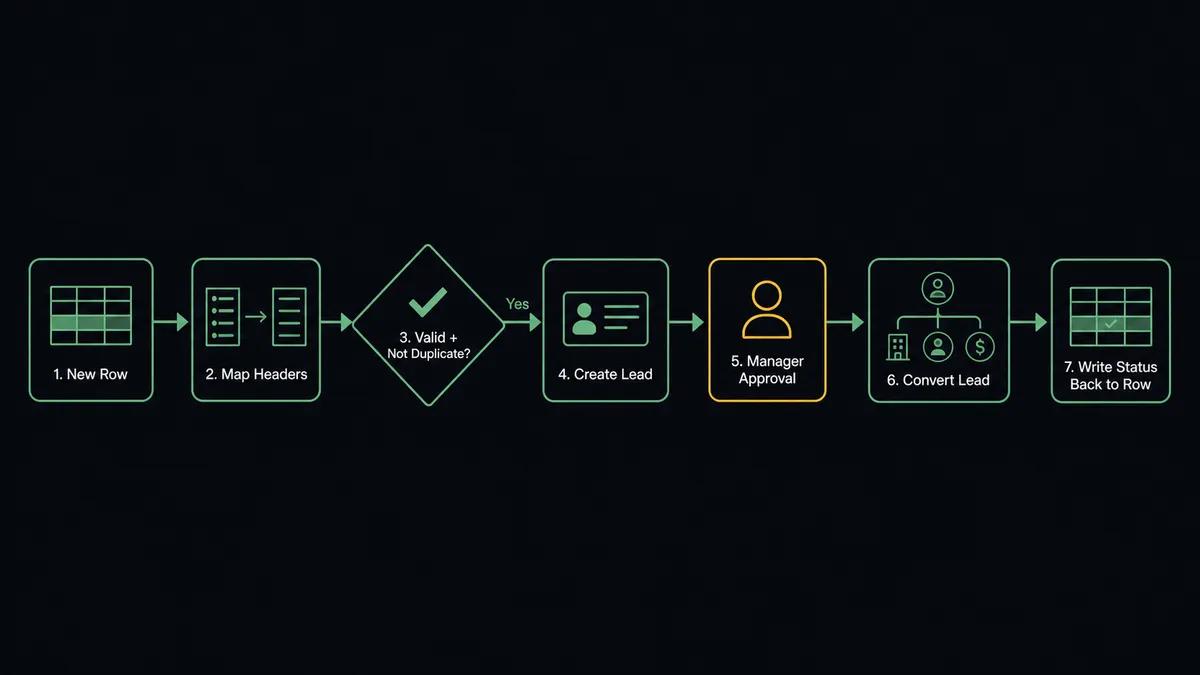
FlowRunner watches the lead-tracking sheet with the On New Row trigger, which fires the moment a new row is added. The agent calls Get Rows to read the new entry and maps the values against the columns established by Load Header Row, so the flow addresses “Company” and “Email” by name instead of by cell coordinates that break if a column gets reordered.
Before creating anything, the agent checks the row against required fields: name, company, email. A row missing any of those is not pushed to Salesforce. It stays exactly where the Google Sheets human-in-loop pattern puts it: marked in the sheet and routed to the sheet owner to correct, so nothing incomplete reaches your CRM.
For a row that passes validation, the agent calls Find Record against Salesforce Leads to check whether this email already exists as a lead, avoiding a duplicate. If it’s new, the agent calls Create Lead, mapping the row’s fields into the Salesforce lead record. From there the agent evaluates the lead against your ICP criteria, the same scoring step Salesforce Pro’s own lead pipeline uses, and decides what happens next.
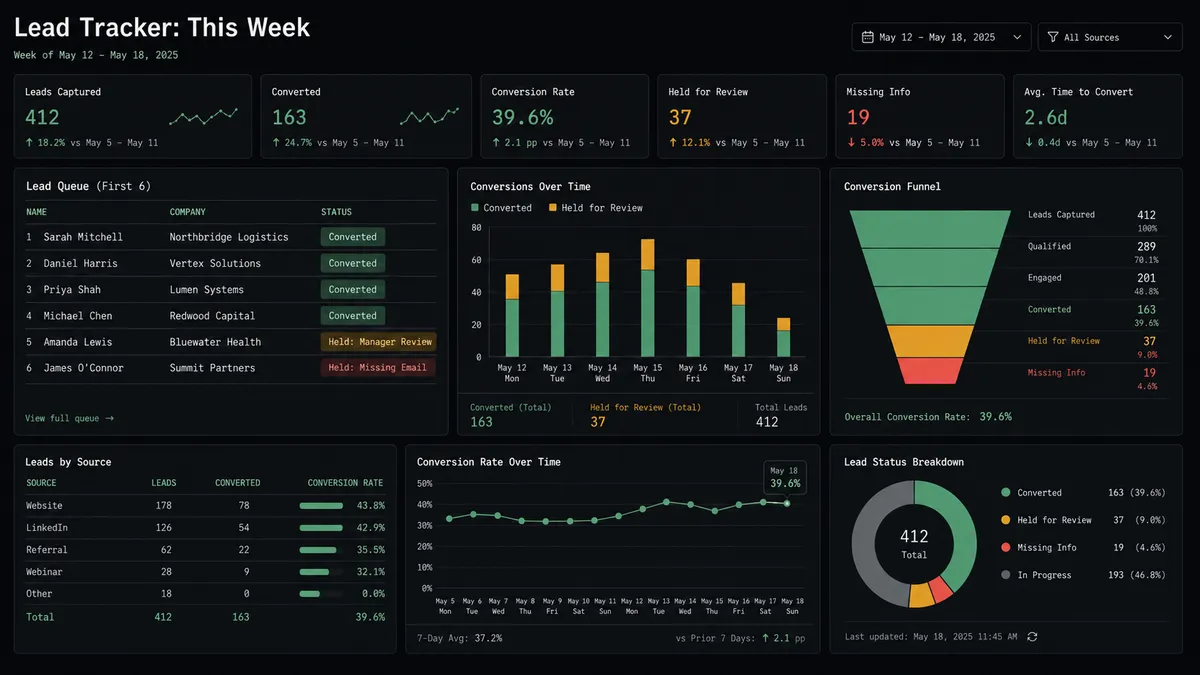
Once the outcome is settled, the agent calls Update Row to write a status back into the original sheet row: created, converted, or held for review. The sheet becomes a live tracker of what actually happened in Salesforce, not just a list of raw submissions.
Can an AI agent run it? (and why a human stays in the loop)
A rule-based sync would stop at “new row creates lead.” An AI agent goes further: it reads the lead’s data, scores it, and decides whether this specific lead is ready to move forward, and if so, whether the conversion needs a second set of eyes before it happens.
Lead conversion in Salesforce is not reversible. Once Convert Lead to Contact runs, the lead record is merged into an account, contact, and opportunity, and there’s no undo button. That’s exactly the kind of step FlowRunner’s human-in-loop is built for. The agent scores the lead against ICP criteria and, for anything above the qualifying threshold, prepares to convert it. Before it executes Convert Lead to Contact, it invokes a separate human-in-loop flow as a callable tool. This is not a hardcoded “always ask” rule; it’s a checkpoint built into the conversion step itself, because every conversion carries the same irreversible weight regardless of score.
The agent packages the context a manager actually needs to decide fast: the lead’s name and company, the ICP score, and the rep it would assign the opportunity to. It sends that over Slack: “Lead [Name] at [Company] scored 87. Ready to convert and assign to [Rep Name]. Confirm or reassign?” The manager approves in one click, or reassigns to a different rep if territory rules require it. The agent resumes, runs the conversion, and the decision, the approver’s identity, and the timestamp are all captured in the audit trail. No phantom conversions, no territory disputes traced back to a spreadsheet nobody remembers updating.
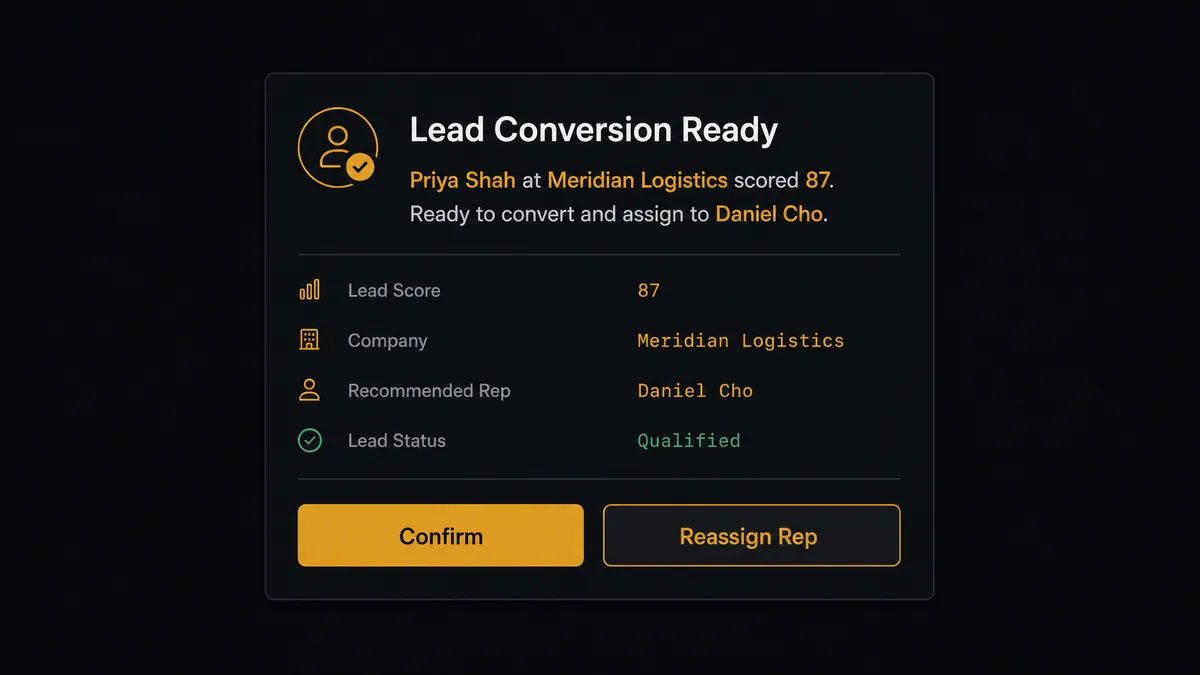
This is what prospects call a “digital andon cord.” The agent doesn’t just move data from a sheet to a CRM. It knows which step in that path can’t be taken back, and it stops the line there until a person says go.
FlowRunner vs the tool you’re probably comparing
If you’re syncing Google Sheets to Salesforce today, there’s a decent chance you built it in Zapier. Zapier is genuinely fast for this: connect a New Spreadsheet Row trigger to a Salesforce Create Record action, map a few fields, and you have a working sync in minutes. For a simple one-way row-to-lead push, that’s a reasonable starting point.
Where it runs out of road is exactly at the point that matters most here: conversion. Zapier has no native concept of pausing a multi-step CRM action for approval with context and an audit trail. Building that means bolting on a separate Slack step, a manual check, and hoping someone remembers to look at it before the next Zap run fires and converts something that shouldn’t have been converted yet.
| Feature | Zapier | FlowRunner |
|---|---|---|
| Row-to-lead sync | Yes, fast to set up | Yes, same speed |
| Duplicate check before creating a lead | Requires a separate Search step wired manually | Native step in the same flow (Find Record) |
| Native human approval before an irreversible action | Not native; requires manual Slack wiring with no audit trail | Native callable tool; agent invokes it by judgment |
| AI agent that scores leads and decides, not just routes them | Not available | Yes; agent reads ICP data and decides |
| Audit trail of who approved a conversion, and when | No | Yes; approver identity and timestamp captured |
| Unlimited users on every tier | No (seat-based pricing) | Yes |
Before and after
| Category | Before | After |
|---|---|---|
| New row to Salesforce lead | Batched manually once a day or once a week | Created the moment On New Row fires |
| Incomplete rows | Created anyway or silently skipped | Held, flagged in the sheet, routed to the owner to fix |
| Duplicate leads | Caught after the fact during cleanup, if at all | Checked with Find Record before any lead is created |
| Lead conversion | Reps convert ad hoc, sometimes twice, no record of who decided | Every conversion requires manager approval with the decision logged |
| Sheet as a tracker | Shows raw submissions only, no outcome visibility | Updated with Update Row to show created, converted, or held status |
| Territory assignment | Disputed after the fact | Confirmed by the manager before conversion, not after |
What you can build
Form-to-lead pipeline with scoring. When On New Row fires on a form-response sheet, the agent validates the row, checks for a duplicate with Find Record, creates the lead with Create Lead, and scores it against ICP criteria before deciding whether to queue it for conversion.
Gated conversion with rep assignment. For any lead that scores above threshold, the agent pauses before Convert Lead to Contact and routes the decision to the sales manager over Slack, including the proposed rep assignment. Conversion only happens after approval.
Weekly attribution report written to a tracker sheet. On a schedule, the agent runs a Custom SOQL Query against closed opportunities to identify campaign attribution, then calls Add Rows to write the results into a reporting sheet, giving revenue ops a live attribution tracker instead of a one-off export.
Nurture routing for low scorers. Leads that score below threshold don’t get discarded. The agent calls Add Lead to Campaign to enroll them in a nurture track and calls Update Row to mark the sheet with “Nurture” status, so the sheet reflects every outcome, not just conversions.
Row-level error recovery. When a row fails validation, the agent marks it and messages the sheet owner with the specific missing field. Once corrected, the agent reprocesses only that row, checking it again before it ever touches Salesforce.
Common questions
Is it free to connect Salesforce Pro and Google Sheets on FlowRunner? FlowRunner has a free plan with 100 executions a month, every integration included, and no credit card required, and new accounts get 14 days of Professional on top. The Growth plan is $45 per month and includes unlimited users, unlimited workflows, and full access to both the Salesforce Pro and Google Sheets connectors.
Can I self-host the Salesforce Pro and Google Sheets connection? Yes. FlowRunner offers a self-hosted Community Edition at no cost and an Enterprise self-hosted option with multi-instance clustering and a full compliance suite. Both run the same Salesforce Pro and Google Sheets connectors as the cloud-hosted tiers.
Does the AI agent need my own API keys for Salesforce and Google Sheets? Yes. FlowRunner uses a bring-your-own-keys model. You connect your Salesforce org and your Google account with your own credentials, and you bring your own key for whichever AI provider powers the agent. Your credentials stay in your environment.
What happens when the agent isn’t sure whether to convert a lead? The agent does not guess. Before it runs Convert Lead to Contact, it invokes a human-in-loop flow as a callable tool, pauses the workflow, and sends the sales manager the lead’s score and account context over Slack. The workflow resumes only after the manager approves or reassigns, and the decision is captured in the audit trail.
Can a bad row in the sheet still reach Salesforce? No. The agent validates each row against the required fields before it creates anything in Salesforce. Rows missing a name, company, or email are held, marked in the sheet, and routed to the sheet owner to fix, so nothing incomplete reaches your CRM.
Can FlowRunner also write Salesforce data back into a sheet? Yes. The same connection runs in reverse: an agent can run a Custom SOQL Query or Find Records by Query against Salesforce on a schedule and write the results into a sheet with Add Rows, so reporting stays current without anyone exporting a CSV.
Getting started
Start on the free plan: 100 executions a month, every integration included, no credit card required, plus 14 days of Professional for new accounts. Connect your Salesforce Pro account and your Google Sheets account, set On New Row as your trigger, and have your first scored lead pipeline running in minutes. When you’re ready to add the conversion approval step, book a walkthrough or start building now at flowrunner.ai.
Frequently asked questions
Is it free to connect Salesforce Pro and Google Sheets on FlowRunner?
FlowRunner has a free plan with 100 executions a month, every integration included, and no credit card required, and new accounts get 14 days of Professional on top. The Growth plan is $45 per month and includes unlimited users, unlimited workflows, and full access to both the Salesforce Pro and Google Sheets connectors.
Can I self-host the Salesforce Pro and Google Sheets connection?
Yes. FlowRunner offers a self-hosted Community Edition at no cost and an Enterprise self-hosted option with multi-instance clustering and a full compliance suite. Both run the same Salesforce Pro and Google Sheets connectors as the cloud-hosted tiers.
Does the AI agent need my own API keys for Salesforce and Google Sheets?
Yes. FlowRunner uses a bring-your-own-keys model. You connect your Salesforce org and your Google account with your own credentials, and you bring your own key for whichever AI provider powers the agent. Your credentials stay in your environment.
What happens when the agent isn't sure whether to convert a lead?
The agent does not guess. Before it runs Convert Lead to Contact, it invokes a human-in-loop flow as a callable tool, pauses the workflow, and sends the sales manager the lead's score and account context over Slack. The workflow resumes only after the manager approves or reassigns, and the decision is captured in the audit trail.
Can a bad row in the sheet still reach Salesforce?
No. The agent validates each row against the required fields before it creates anything in Salesforce. Rows missing a name, company, or email are held, marked in the sheet, and routed to the sheet owner to fix, so nothing incomplete reaches your CRM.
Can FlowRunner also write Salesforce data back into a sheet?
Yes. The same connection runs in reverse: an agent can run a Custom SOQL Query or Find Records by Query against Salesforce on a schedule and write the results into a sheet with Add Rows, so reporting stays current without anyone exporting a CSV.