PagerDuty Jira Issues Integration: Every Incident Becomes a Ticket
Connect PagerDuty and Jira Issues so every triggered incident becomes a fully contextualized Jira issue, with an AI agent that confirms the assignee with a human before it touches a P1.
How do you connect PagerDuty to Jira Issues?
Connecting PagerDuty to Jira Issues means the On New Triggered Incident trigger in PagerDuty fires the Create Issue action in Jira, so every page becomes a tracked, assigned issue with the alert payload and urgency attached before the responder has finished reading the page. FlowRunner is a visual AI-agent orchestration platform where automations run autonomously and pause for human judgment on the steps that carry real consequence. The same connection can run as a standard sync, or as an AI agent that reads the incident, decides who should own it, and pauses to confirm the assignee with a human before it touches a P1.
The problem it solves
When a service pages, the on-call engineer’s first job is not fixing anything. It’s figuring out what paged, whether it’s real, and whether anyone is already tracking it. Meanwhile someone, usually the responder themselves after the fact, has to open Jira and manually write up an issue: paste the incident title, guess at severity, remember to attach the alert details, and figure out who actually owns the affected component. On a quiet night that’s five minutes lost. During an incident storm, tickets fall through the cracks entirely, and engineering managers find out about production issues from a Slack thread instead of a tracked issue.
The assignment step is where things get riskier. A P1 incident that touches a shared service shouldn’t get auto-assigned to whoever happens to be top of a rotation list. Someone with context needs to confirm ownership. Today that confirmation happens informally, in a DM or a hallway conversation, with no record of who decided what. The incident history and the ticket history end up living in two disconnected systems, and nobody can reconstruct the full timeline later without cross-referencing both.
How it works: the connection
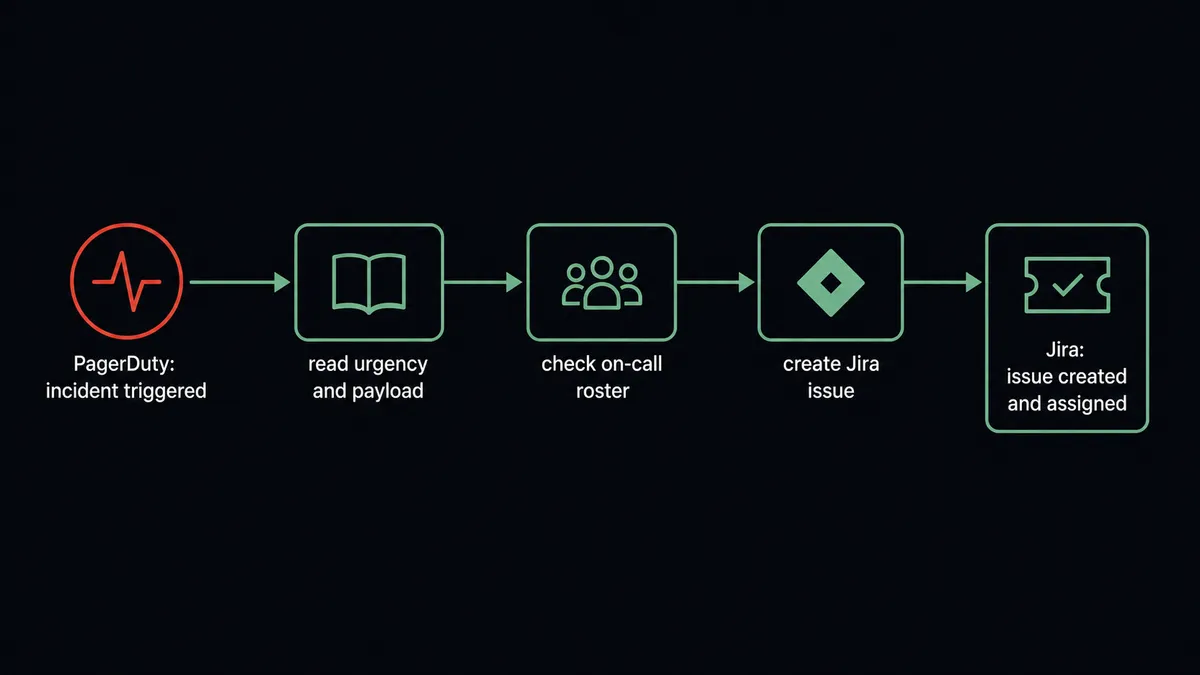
The flow starts with PagerDuty’s On New Triggered Incident trigger, which fires the moment a service pages, before a human has acknowledged anything. That gives the agent a head start: it reads the incident’s title, urgency, service, and the alert payload that opened it, and it calls List On-Calls to identify who is currently responsible.
From there, the agent calls Create Issue in Jira, mapping the incident summary, description, severity, and the responsible service into the issue’s fields. It calls Add Attachment to carry the raw alert payload into Jira as supporting evidence, so the engineer working the ticket doesn’t have to jump back into PagerDuty to see what actually triggered. It calls Assign Issue to route the ticket to the correct owner. The result: a structured Jira issue exists, with full incident context, within seconds of the page landing, not after someone gets around to writing it up.
Can an AI agent run it? (and why a human stays in the loop)
A sync tool can move the incident title into a Jira field. It can’t decide who should own the ticket. That’s the difference: the FlowRunner agent reads the incident data, reasons about it, and picks its next action, rather than executing a fixed sequence of calls.
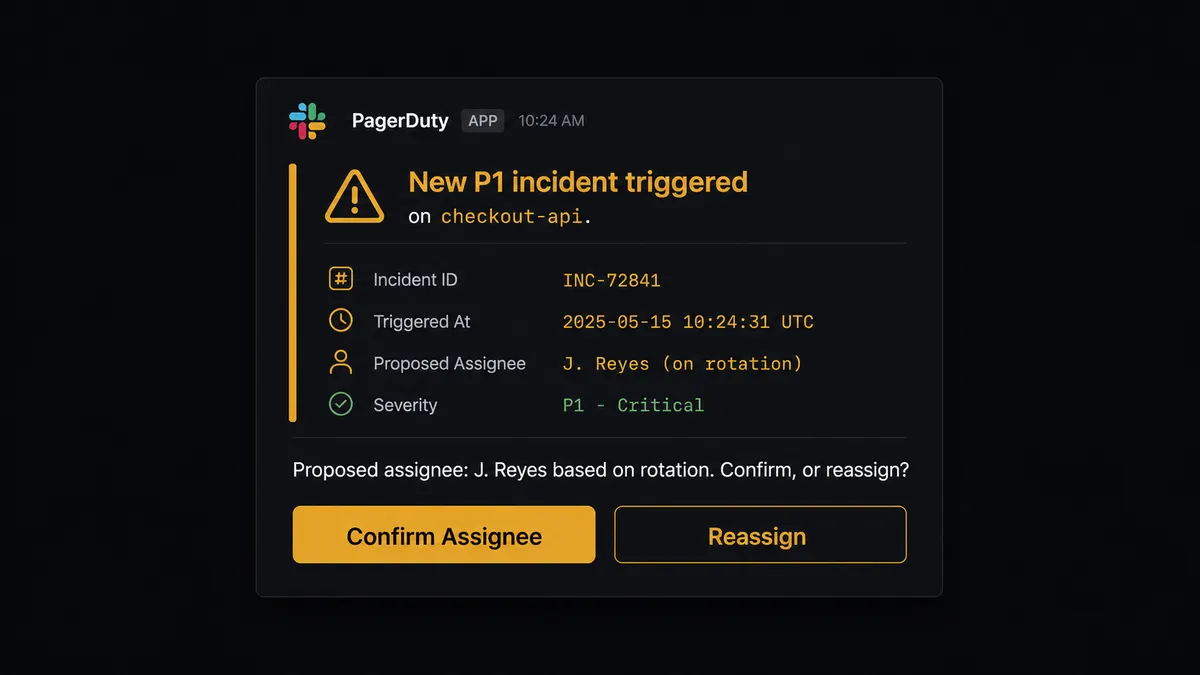
Here’s the decision moment. The agent evaluates the incident’s urgency and the service it hit. For a routine P3 alert on a well-understood service, it creates the issue, assigns it to the on-call engineer from the rotation, and moves on. No human needed. But when the incident is P1, or it touches a component flagged as sensitive, the agent doesn’t assume the rotation is right for this incident. It invokes a human-in-loop flow as a tool: it posts to the team lead in Slack, “New P1 incident triggered on [service]. Proposed assignee: [on-call engineer] based on rotation. Confirm, or reassign?” The message carries the incident summary, urgency, and the reasoning behind the suggested owner.
The workflow pauses there. The team lead confirms or redirects, right in Slack. The agent resumes, creates the Jira issue with the confirmed assignee, and records the decision, the decider, and the timestamp in the issue’s activity. This is not a hardcoded “if P1, always ask” rule bolted onto the flow. It’s the agent weighing urgency and component sensitivity the way a human triage lead would, and reaching for a human the moment the call carries real weight. This is not a sync tool. The agent knows when to stop and ask, the same digital andon cord that lets an operations team trust automation with the routine cases while keeping a human hand on the ones that matter.
FlowRunner vs n8n
n8n earns its following with technical teams for good reason. Its connector library is large, it’s self-hostable for free, and engineers who already write JavaScript can drop custom code straight into a node. If your SRE team already runs infrastructure automation in n8n, that flexibility is real and FlowRunner isn’t going to pretend otherwise.
Where the gap shows up is exactly at the assignment-confirmation step above. n8n has no native concept of an agent pausing mid-workflow to ask a human and resuming with that answer as structured input; teams build that themselves with a Wait node and a webhook, and then maintain it. FlowRunner treats that pause as a first-class part of the agent’s toolbox.
| Capability | n8n | FlowRunner |
|---|---|---|
| Human confirmation on assignment | Custom Wait node plus a webhook you build and maintain | Native: the agent calls a human-in-loop flow as a tool and resumes with the answer |
| Users on your plan | Per-seat pricing on paid tiers | Unlimited users on every tier, including Growth at $45/mo |
| AI provider | You wire your own LangChain setup into a node | BYOK; the same agent node reasons and calls PagerDuty and Jira actions as tools |
| Self-hosting | Free, community-maintained, you own the infrastructure | Self-hosted Enterprise option, or cloud with audit trails from $299/mo Professional |
| Pricing model | Execution-based; an incident storm can spike your count | Workflow-based tiers with hard limits, no per-execution surprise |
Before and after
| What changes | Before | After |
|---|---|---|
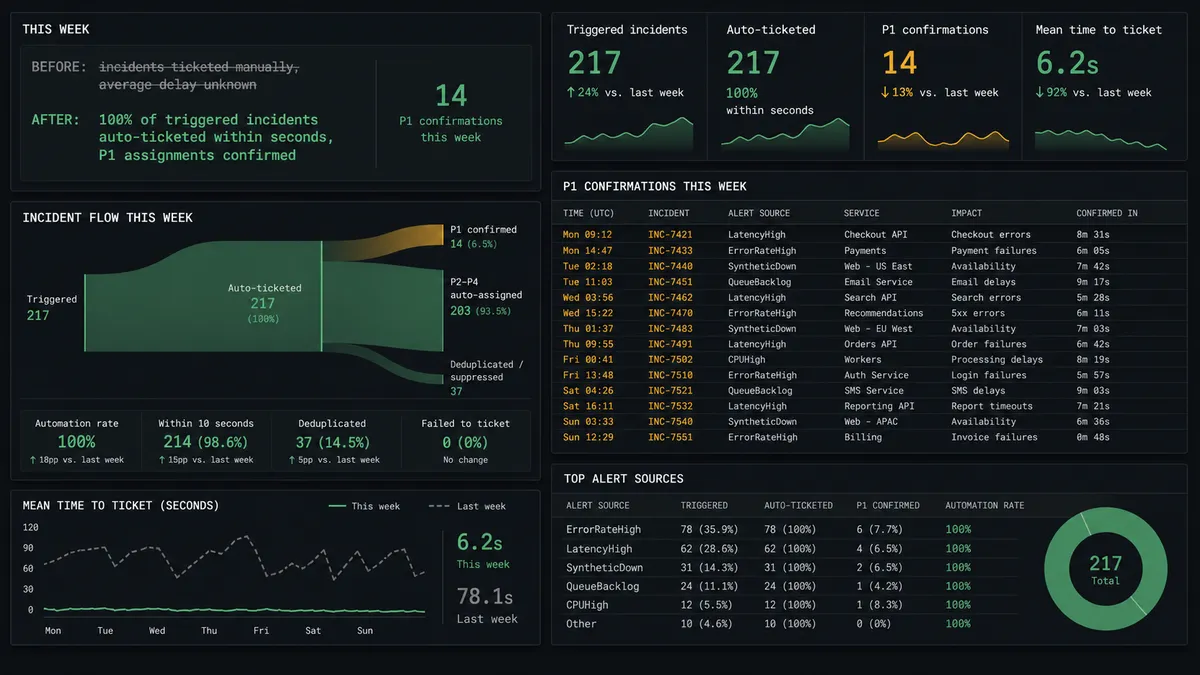
| Ticket creation | Responder or teammate manually opens Jira and writes up the incident after the fact | Jira issue exists with full incident context within seconds of the page |
| Ticket content | Engineers get a bare title, no structured detail | Issue includes urgency, service, and the raw alert payload as an attachment |
| Assignment | On-call rotation is checked by hand, slower overnight and on weekends | Agent looks up who’s on call now and proposes the assignee automatically |
| P1 ownership | Critical incidents can sit with an assumed owner nobody confirmed | Team lead confirms or redirects the assignee in Slack before the issue is created |
| Audit trail | Incident response and ticket history live in two disconnected systems | Decision, decider, and timestamp are recorded on the Jira issue’s timeline |
What you can build
Incident-to-ticket handoff. Every triggered incident becomes a Jira issue with severity, service, and alert payload attached, assigned automatically for routine cases and confirmed with a human for P1s.
Deploy-correlated bug reports. When an incident correlates with a recent deploy recorded through Send Change Event, the agent opens a Jira bug with the error context and links it back to the incident, so the engineering team starts from cause, not just symptom.
Resolution sync back to the incident. Since Jira Issues has no native trigger in this connector, the agent polls with a JQL Search Issues query for status transitions. When a linked issue moves to Done, it adds a resolution note to the PagerDuty incident’s timeline with Create Note.
Merged-incident tracking. When the agent uses Merge Incidents to collapse a storm of related pages into one, it creates a single Jira issue for the merged incident instead of one ticket per alert, keeping the engineering backlog clean.
Maintenance window documentation. When a deploy triggers Create Maintenance Window in PagerDuty to suppress expected noise, the agent logs a matching Jira task documenting the window and its purpose, so the maintenance record isn’t only visible to whoever thinks to check PagerDuty.
Common questions
Is it free to connect PagerDuty and Jira Issues on FlowRunner? Yes to start. FlowRunner has a free plan with 100 executions a month, every integration included, and no credit card required, and new accounts get 14 days of Professional on top.
Does the agent need my own OpenAI or Anthropic key? FlowRunner runs on a bring-your-own-key model, so the agent uses the AI provider and key you connect. You are never locked into a single model vendor.
What happens when the agent isn’t sure who should own an incident? It stops and asks. For P1 incidents or issues touching sensitive components, the agent posts the proposed assignee to the team lead in Slack and waits for a confirmation before it creates or assigns the Jira issue.
Can I self-host this connection instead of running it in the cloud? Yes. FlowRunner’s Enterprise tier supports self-hosted, multi-instance deployment for teams that need PagerDuty and Jira data to stay inside their own infrastructure.
Does this replace PagerDuty’s own incident acknowledgement? No. The on-call engineer still acknowledges the incident in PagerDuty itself. FlowRunner adds the Jira issue, the context, and the assignment confirmation around that acknowledgement, it does not remove it.
Can the agent update the Jira issue after the incident resolves? Yes. Since Jira Issues has no native trigger in this connector, the agent polls with a JQL query for the transition and then adds a resolution comment or transitions the linked PagerDuty incident notes to match.
Getting started
FlowRunner has a free plan with 100 executions a month, every integration included, and no credit card required, and new accounts get 14 days of Professional on top. Connect PagerDuty and Jira Issues, pick the trigger, and let the agent handle the routine incidents while it brings you in on the ones that matter.
Start building at flowrunner.ai, or book a walkthrough if you want to see the human-in-loop assignment step live before you connect your own accounts.
Frequently asked questions
Is it free to connect PagerDuty and Jira Issues on FlowRunner?
Yes to start. FlowRunner has a free plan with 100 executions a month, every integration included, and no credit card required, and new accounts get 14 days of Professional on top.
Does the agent need my own OpenAI or Anthropic key?
FlowRunner runs on a bring-your-own-key model, so the agent uses the AI provider and key you connect. You are never locked into a single model vendor.
What happens when the agent isn't sure who should own an incident?
It stops and asks. For P1 incidents or issues touching sensitive components, the agent posts the proposed assignee to the team lead in Slack and waits for a confirmation before it creates or assigns the Jira issue.
Can I self-host this connection instead of running it in the cloud?
Yes. FlowRunner's Enterprise tier supports self-hosted, multi-instance deployment for teams that need PagerDuty and Jira data to stay inside their own infrastructure.
Does this replace PagerDuty's own incident acknowledgement?
No. The on-call engineer still acknowledges the incident in PagerDuty itself. FlowRunner adds the Jira issue, the context, and the assignment confirmation around that acknowledgement, it does not remove it.
Can the agent update the Jira issue after the incident resolves?
Yes. Since Jira Issues has no native trigger in this connector, the agent polls with a JQL query for the transition and then adds a resolution comment or transitions the linked PagerDuty incident notes to match.