Connect Dropbox to Slack: Route File Exceptions for Review
Connect Dropbox and Slack so new file uploads trigger a Slack summary automatically, and run it as an AI agent that pauses in Slack when a parsed file needs a human decision.
How do you connect Dropbox to Slack?
Connect Dropbox to Slack by wiring the Dropbox On New File trigger to a Slack Send Message to Channel action: a file lands in a watched Dropbox folder, and a summary with a shared link posts to a Slack channel automatically. FlowRunner is a visual AI-agent orchestration platform where automations run autonomously and pause for human judgment on the steps that carry real consequence. On this pair, the same connection can run as an AI agent that reads the uploaded file, decides whether it needs a person, and only pauses in Slack when a parsing result is uncertain.
The problem it solves
Right now, someone on the operations team is the human polling loop. A customer or vendor drops a file into a shared Dropbox folder, and nothing happens until an ops lead or admin remembers to check that folder, a task that competes with everything else on their plate. Files sit unnoticed for hours. When they’re finally found, someone processes them by hand, drags them into an archive folder with whatever naming convention they remember that week, and if the file needs to go to an external party, it goes out as an email attachment with no expiry and no way to revoke it later.
The Slack side of the gap is just as manual. Exceptions, an unparseable scan, a mismatched field, a file that doesn’t fit the expected format, get raised in email threads or ad hoc DMs that nobody else can see. There’s no structured record of who approved what, no audit trail, and no way for a manager to glance at a channel and know the status of the day’s intake. Work falls through the cracks not because anyone is careless, but because the connection between “a file arrived” and “someone with judgment looked at it” doesn’t exist.
How it works: the connection
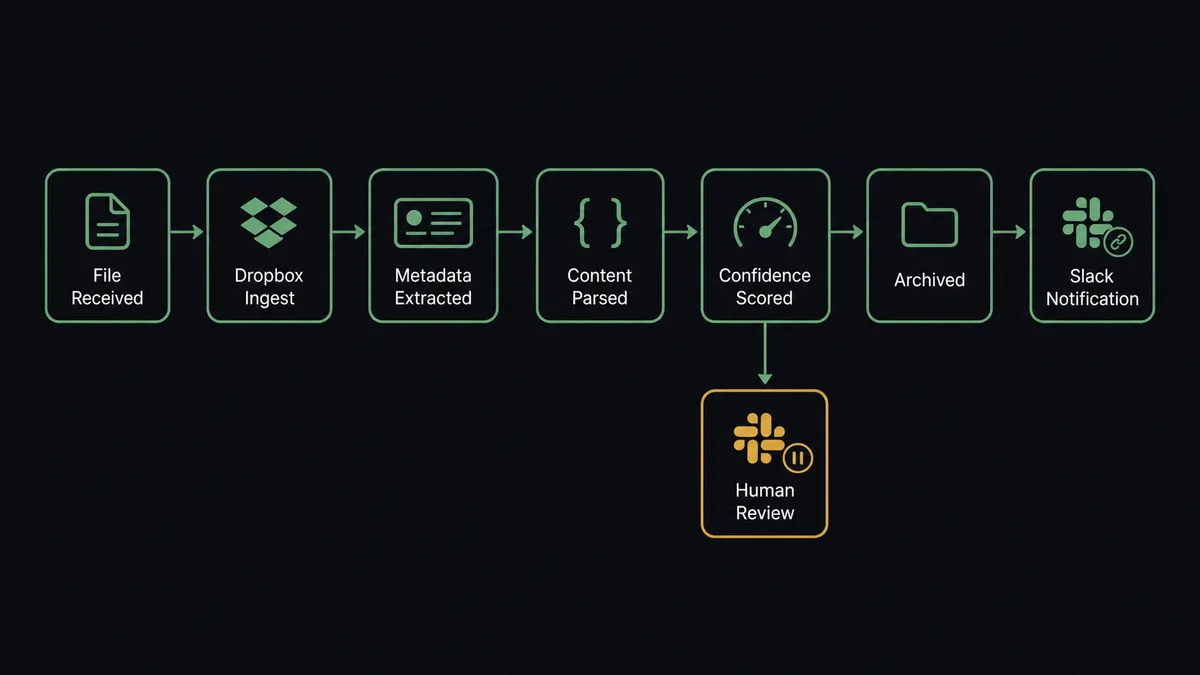
The trigger is Dropbox’s On New File, which fires the moment a file is added to a watched folder, no polling required. From there, the agent calls Get File Metadata to confirm the file’s size, type, and timestamp, then Get Temporary Link to hand the file’s URL to downstream processing without buffering the file body itself.
Once the file is parsed and the extracted record is written to the system of record, the agent calls Move File or Folder to relocate the original from the intake folder into a structured archive path, organized by customer and date, so the source folder stays clean. It then calls Create Shared Link to generate a fresh, revocable URL and posts a summary to Slack using Send Message to Channel, attaching that link so the operations team can open the file without needing Dropbox membership. The whole path, from upload to a Slack message with a working link, runs without a person checking the folder.
Can an AI agent run it? (and why a human stays in the loop)
Yes, and this is the upgrade a plain trigger-to-action zap can’t offer. The agent doesn’t just move a file from point A to point B. It reads what the parser returned, reasons about whether the extraction is trustworthy, and picks its next tool based on that judgment, not a fixed rule written in advance.
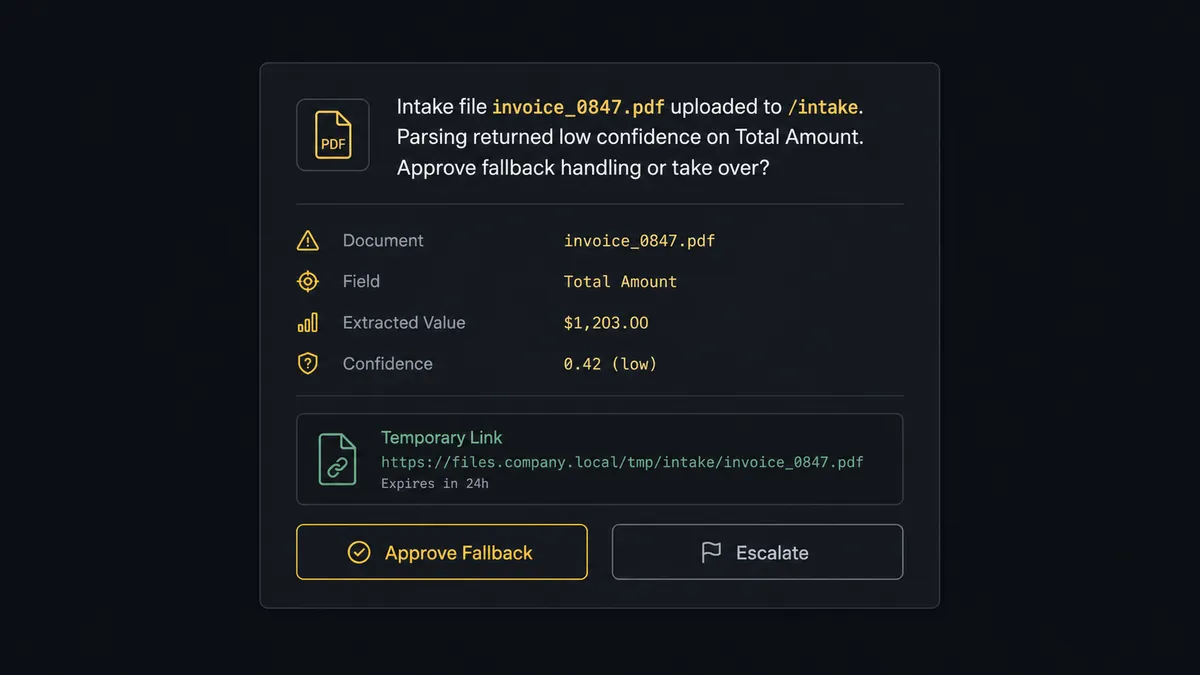
When the agent encounters an anomalous upload, an unexpected file type, missing required content, or a parsing step that returns low confidence on a field, it does not silently drop the file or push a bad record forward as if the work succeeded. It invokes a human-in-loop flow as a callable tool: it posts to the operations Slack channel, “Intake file [name] uploaded to [path]. Parsing returned low confidence on [field]. Approve fallback handling or take over?” That message carries the file name, the path, the specific field the agent is unsure about, and a Create Shared Link URL so the reviewer can open the actual file. Two buttons, Approve and Escalate, are wired to Slack’s On Block Action trigger, which fires the moment someone clicks and resumes the paused workflow with their decision as input.
An operator opens the temporary link, reviews the file, and either confirms a fallback path or takes over the document manually. The agent records who decided, what they decided, and when, in the audit trail. This is not a sync tool with an if/then branch bolted on. The agent knows when to stop and ask, and the escalation trigger is a judgment call about this specific file, not a hardcoded rule that fires the same way every time.
FlowRunner vs Zapier
Zapier is genuinely easy to set up for exactly this kind of trigger-to-action connection, and its template library covers Dropbox-to-Slack out of the box. For a team that just wants a file upload to post a Slack message, Zapier does that well.
Where the pair diverges is what happens when the file needs a judgment call, not just a notification.
| Capability | Zapier | FlowRunner |
|---|---|---|
| Human-in-loop on exceptions | Not native; requires a separate approval app or manual follow-up | Built in: the agent invokes a human-in-loop flow as a tool and pauses in Slack with full context |
| Users included | Priced per user on paid plans | Unlimited users on every tier |
| AI model choice | Limited to Zapier’s built-in AI actions | BYOK: bring your own key for the AI provider you already use |
| Self-hosting | Not available | Free Community Edition, plus an Enterprise self-hosted option |
| Decision audit trail | Not built in for approvals | Every approve/escalate decision captured with approver identity and timestamp |
| Pricing model | Per-task pricing that scales with volume | Transparent workflow-based execution tiers |
Before and after
| Metric | Before | After |
|---|---|---|
| File discovery | Files sit unnoticed until the next manual folder check | On New File triggers the flow the instant a file lands |
| Filing consistency | Processed files dragged into archive folders by hand, naming varies by whoever did it | Files move to a predictable archive path tied to the record they produced |
| External sharing | Files go out as email attachments with no expiry or revocation | Recipients get temporary, time-limited links that expire on schedule |
| Exception visibility | Low-confidence files get missed or handled inconsistently | Every uncertain file posts to Slack with Approve/Escalate and a shared link |
| Decision record | No structured trail of who signed off on an exception | Every decision captured with approver identity and timestamp in the audit trail |
What you can build
Customer document intake with automatic archiving. A customer uploads a PDF to a shared folder, the agent parses it, writes the record, moves the original to a dated archive path with Move File or Folder, and posts a summary to Slack with a shared link attached.
Contract change alerts for legal review. On File Modified fires when a tracked contract is updated. The agent calls Create Shared Link for the new version and posts to the legal Slack channel with the file name, the new link, and the last-modified timestamp so a reviewer can check the change against agreed terms.
Exception queue for unparseable uploads. Any file that fails validation triggers a Slack message with Approve fallback or Escalate buttons wired to On Block Action, so nothing silently fails and every override is logged.
Time-limited external delivery. After a report is uploaded via Upload File from URL, the agent creates a shared link, sends it through Slack to the stakeholder, and calls Revoke Shared Link once the retention window passes.
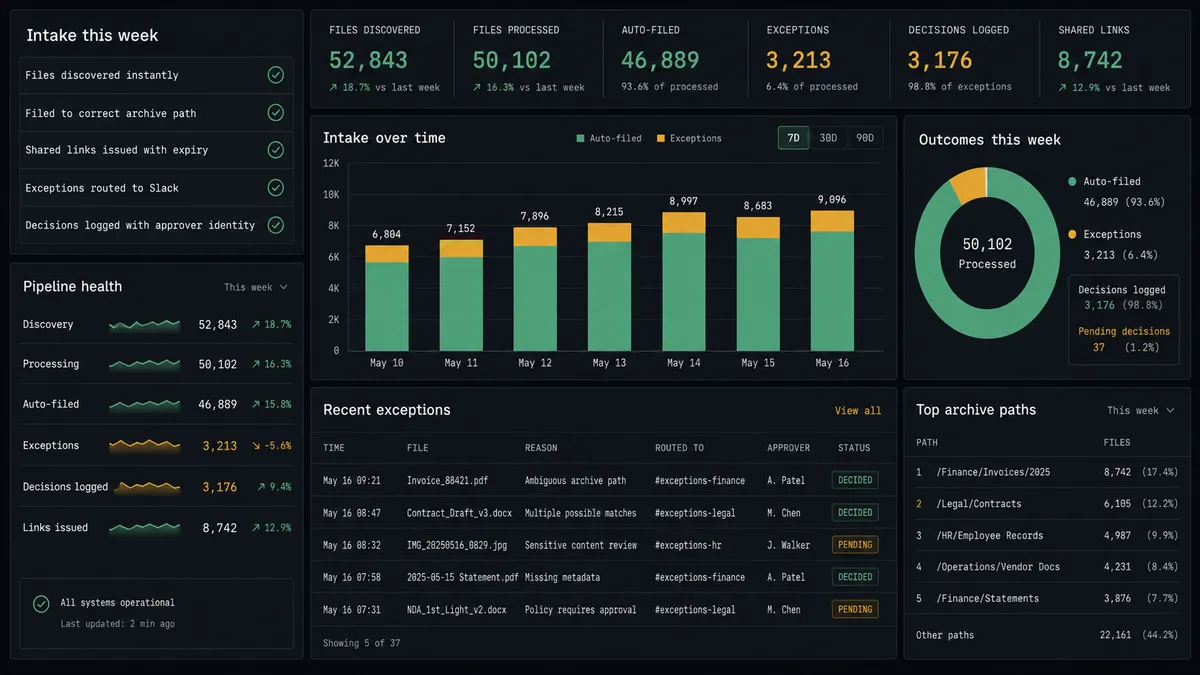
Weekly intake digest. Every Monday, an agent compiles the week’s file counts, exceptions, and resolutions and posts a formatted report to an operations channel using Block Kit, so leadership sees intake volume without pulling a report by hand.
Common questions
Is it free to connect Dropbox and Slack on FlowRunner? Yes. FlowRunner has a free plan with 100 executions a month, every integration included, and no credit card required, and new accounts get 14 days of Professional on top.
Can I self-host the Dropbox-to-Slack workflow? Yes. FlowRunner offers a free Community Edition for self-hosting, and an Enterprise self-hosted tier with multi-instance clustering and full compliance features for larger deployments.
Does the agent need my own OpenAI key? FlowRunner runs on a bring-your-own-key model for AI providers, so you connect the model provider you already use rather than paying FlowRunner a markup on top of AI usage.
What happens when the agent isn’t sure about a file? It does not guess and it does not silently skip the file. It posts the file, the parsing result, and the specific field it is unsure about to a Slack channel with an Approve fallback or Escalate option, and waits for a person to decide.
Do I need to write code to connect Dropbox and Slack? No. Both connections are configured visually: pick the Dropbox trigger, map the fields to the Slack action, and turn the flow on. No API keys to hand-roll and no webhook code to write.
Can the same flow post to multiple Slack channels? Yes. An agent can call Send Message to Channel for a routine summary in one channel and Send Direct Message or a second channel post for an escalation, based on what it finds in the file.
Getting started
Start on the free plan: 100 executions a month, every integration included, no credit card required, plus 14 days of Professional for new accounts. Connect your Dropbox account and your Slack workspace, pick the trigger, and add the human-in-loop step for the exceptions your team should see.
Ready to build it? Start free at flowrunner.ai, or book a walkthrough and we’ll map your intake folder to your Slack channels together.
Frequently asked questions
Is it free to connect Dropbox and Slack on FlowRunner?
Yes. FlowRunner has a free plan with 100 executions a month, every integration included, and no credit card required, and new accounts get 14 days of Professional on top.
Can I self-host the Dropbox-to-Slack workflow?
Yes. FlowRunner offers a free Community Edition for self-hosting, and an Enterprise self-hosted tier with multi-instance clustering and full compliance features for larger deployments.
Does the agent need my own OpenAI key?
FlowRunner runs on a bring-your-own-key model for AI providers, so you connect the model provider you already use rather than paying FlowRunner a markup on top of AI usage.
What happens when the agent isn't sure about a file?
It does not guess and it does not silently skip the file. It posts the file, the parsing result, and the specific field it is unsure about to a Slack channel with an Approve fallback or Escalate option, and waits for a person to decide.
Do I need to write code to connect Dropbox and Slack?
No. Both connections are configured visually: pick the Dropbox trigger, map the fields to the Slack action, and turn the flow on. No API keys to hand-roll and no webhook code to write.
Can the same flow post to multiple Slack channels?
Yes. An agent can call Send Message to Channel for a routine summary in one channel and Send Direct Message or a second channel post for an escalation, based on what it finds in the file.