Webflow + HubSpot: Every Form Lead Lands in the CRM Deduped
Connect Webflow and HubSpot so every form submission becomes a deduplicated, routed HubSpot contact, with an AI agent pausing for a CRM admin when it finds a conflicting record.
How do you connect Webflow to HubSpot?
On Form Submit in Webflow triggers the flow, and the agent calls Get Contact by Email in HubSpot before writing anything, then runs Create Contact, Associate Objects, and Create Deal to open the lead in your inbound pipeline. FlowRunner is a visual AI-agent orchestration platform where automations run autonomously and pause for human judgment on the steps that carry real consequence. The same connection can run as an AI agent that checks for duplicates on every submission and pauses for a CRM admin the moment it finds a record that could be a match.
The problem it solves
A visitor fills out the contact form on your Webflow site. That submission lands in a shared inbox, or worse, in a Webflow forms tab nobody checks daily. Someone on the sales or ops team has to notice it, copy the name and email into HubSpot by hand, create the contact, remember to associate it with the right company, and open a deal. By the time that happens, hours have passed. The rep who should be calling this lead is instead waiting on someone else’s inbox habits.
The reverse problem shows up on the content side. Marketing builds a case study in HubSpot, but getting it live on the Webflow site means someone logging into Webflow, creating a CMS item by hand, copying over the title, summary, and quote, and remembering to hit publish. Both directions are the same story: two systems with real data in them, connected by a person doing copy-paste work between browser tabs. Leads fall through the cracks. Content sits finished but unpublished. Nobody has time back.
How it works: the connection
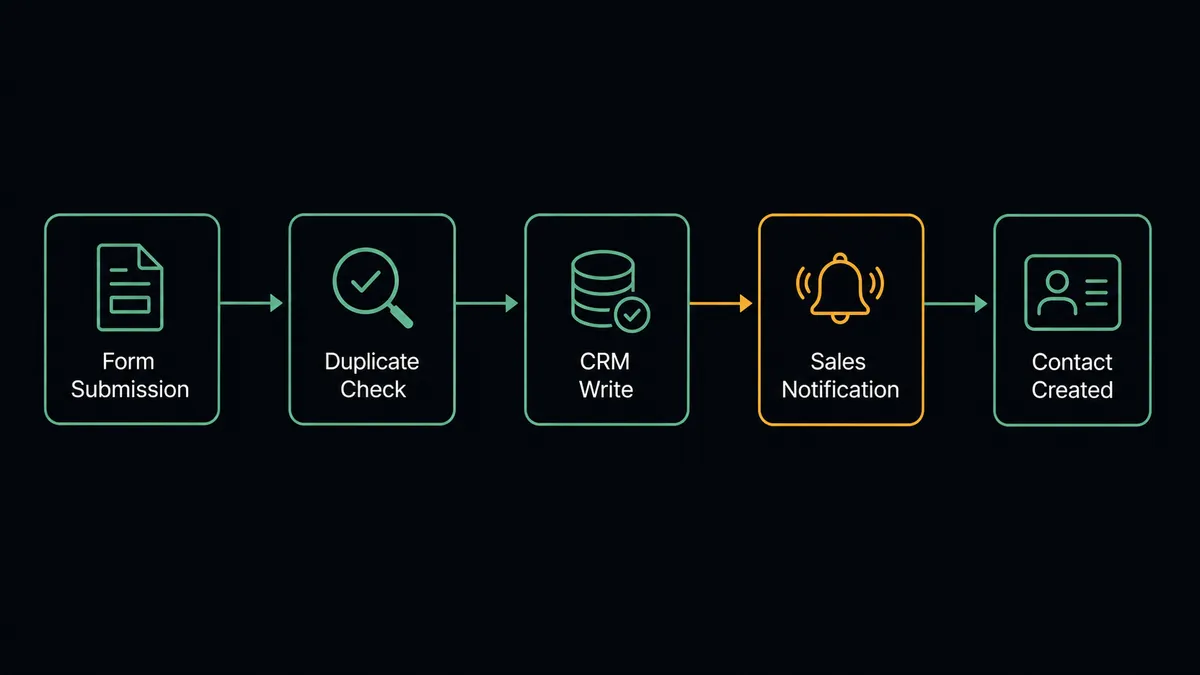
When a visitor submits the Webflow contact form, On Form Submit fires and the agent pulls the name, company, email, and inquiry text out of the submission payload. Before it writes anything to HubSpot, it calls Get Contact by Email to check whether this person already exists in the CRM.
If no record exists, the agent calls Create Contact, sets the lifecycle stage, and calls Associate Objects to link the new contact to the correct company record. It then calls Create Deal to open an opportunity in the inbound pipeline and routes the lead to a sales rep based on territory rules. The rep gets a Slack notification with the contact and deal details within seconds of the form being submitted.
The connection runs the other direction too. When a case study record in HubSpot is marked Published, the agent retrieves the content, calls Create Collection Item in Webflow’s case studies collection with the title, summary, quote, and results data, and prepares the site for a publish. Get Collection Schema Info lets the agent confirm the collection’s field structure before it writes, so a schema change on either side does not silently break the sync.
Can an AI agent run it? (and why a human stays in the loop)
A basic sync tool can move a form field into a CRM field. It cannot tell the difference between a genuinely new prospect and someone who already has an open deal under a slightly different email address.
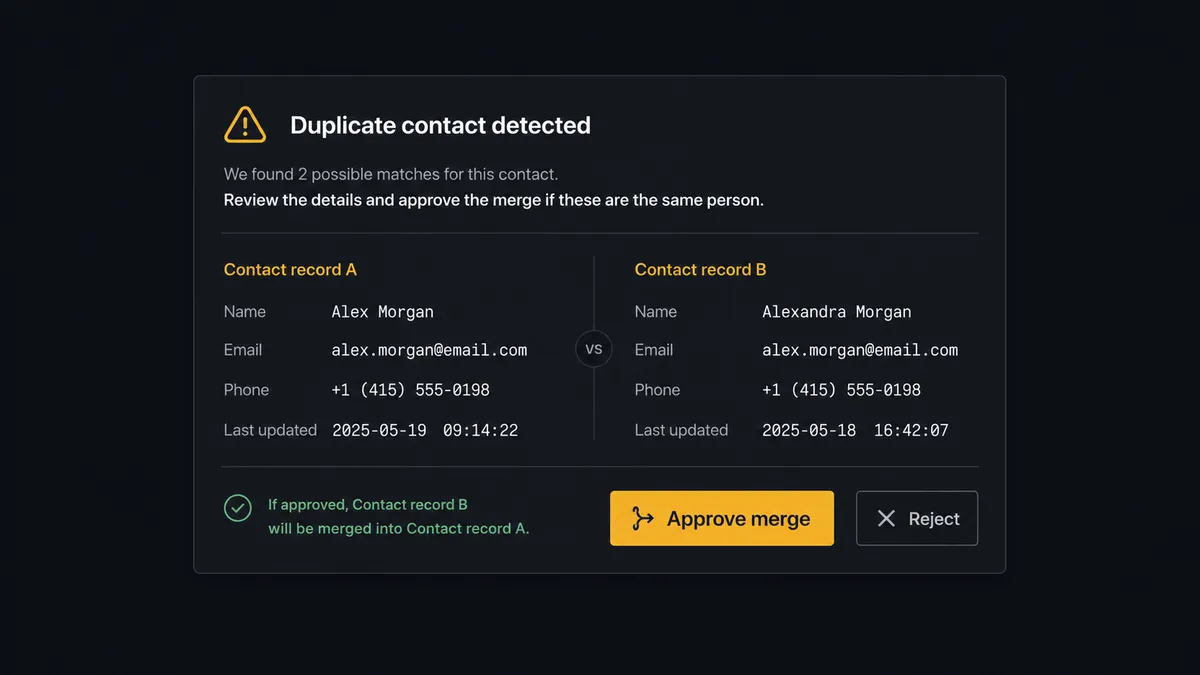
A FlowRunner AI agent reads the Webflow submission, calls Get Contact by Email, and evaluates what comes back. Most of the time the answer is clean: no match, create the contact. But when the agent finds two contacts with the same email domain, or a record that partially matches the submission, it does not guess and it does not silently merge. It pauses and routes the ambiguity to a CRM admin: “I found two contacts matching this email. Which should I associate this deal with?” The admin picks. The agent associates the deal to the chosen record and logs the decision, the decider’s identity, and the timestamp in the audit trail.
The same judgment applies on the publishing side. Before a site publish that affects critical pages, the agent does not push changes live automatically. It sends the marketing manager a Slack message: “I have updated 3 collection items and the site is ready to publish. Preview the changes here: [staging URL]. Approve publish or request changes?” The manager reviews and approves, and only then does Publish Site run. This is not a sync tool. The agent knows when to stop and ask, whether the risk is a bad CRM merge or a bad page going live.
FlowRunner vs Zapier
Zapier is the tool most marketing and sales teams already reach for to connect Webflow and HubSpot, and it does the basic job well: new form submission creates a HubSpot contact, one Zap, minimal setup. That is a genuine strength for a simple one-way sync.
The differences show up once duplicate detection, cross-referencing companies, or publishing content back to the site enter the picture.
| Feature | Zapier | FlowRunner |
|---|---|---|
| Basic form-to-contact sync | Yes, well-supported | Yes |
| Duplicate detection before CRM write | Requires manual Zap logic | Agent calls Get Contact by Email and branches automatically |
| Human-in-loop as a callable tool | No native option | Agent invokes a Slack review at the step that carries weight, not a hardcoded rule |
| Two-way sync (HubSpot content back to Webflow CMS) | Separate Zap, no shared context | Same agent handles both directions with shared reasoning |
| Unlimited users and workflows | Per-task pricing adds up | All tiers, including Growth at $45/mo |
| Self-host option | No | Yes, Community Edition free |
If your team just needs form submissions landing in HubSpot, Zapier gets you there. If you want the agent to catch duplicates, associate the right company, and safely publish content back to the site with a human checking the consequential steps, FlowRunner is the layer above the sync.
Before and after
| Metric | Before | After |
|---|---|---|
| Lead routing | Web form submissions emailed to a shared inbox and routed by hand | Every Webflow form submission creates an attributed HubSpot contact automatically |
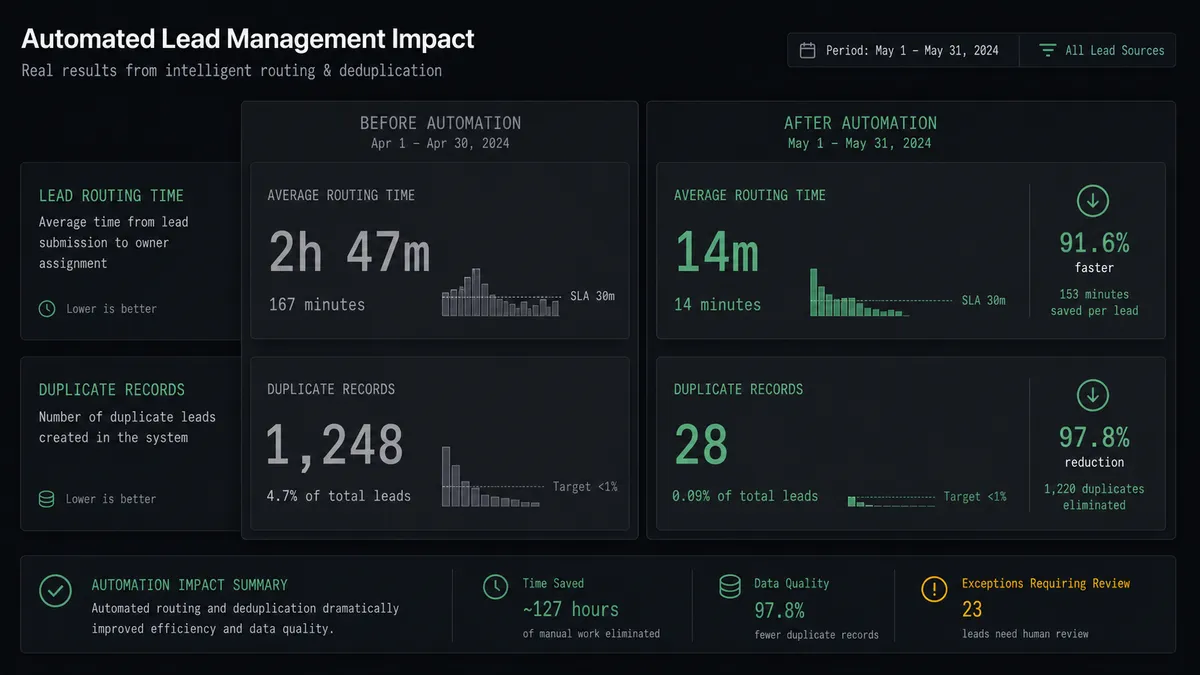
| Time to CRM entry | Leads sit in email until someone manually creates the HubSpot record | Contact created, associated, and deal opened in under 30 seconds |
| Duplicate records | No systematic check before creating a new contact | Agent calls Get Contact by Email before every write |
| Case study publishing | New case studies require marketing staff to log into Webflow and create items manually | Case studies published to Webflow the moment HubSpot marks them ready |
| Publish accountability | Ad hoc, undocumented site updates | Every publish approval logged with the manager’s identity and timestamp |
What you can build
Lead form to CRM with dedup. Every Webflow contact form submission triggers Get Contact by Email, then Create Contact, Associate Objects, and Create Deal for net-new prospects, with a Slack notification to the assigned rep.
Case study publishing from HubSpot. When a HubSpot record is marked Published, the agent creates the matching Webflow Collection Item and holds the site publish for marketing manager approval before it goes live.
Content schema audits. The agent calls Get Collection Schema Info and Get Collection Items on a schedule to confirm the Webflow CMS structure still matches what HubSpot is writing, flagging drift before it breaks a sync.
Duplicate contact resolution queue. When the agent detects conflicting contact matches from Webflow submissions, it routes each conflict to a CRM admin via Slack with both records shown, then associates and documents whichever the admin chooses.
Common questions
Is it free to connect Webflow and HubSpot on FlowRunner? FlowRunner has a free plan with 100 executions a month, every integration included, and no credit card required, and new accounts get 14 days of Professional on top. Beyond the free plan, Growth starts at $45 per month and includes unlimited users and workflows.
Do I need to write any code to send Webflow form leads to HubSpot? No. You connect both accounts in FlowRunner’s visual builder, choose On Form Submit as the trigger, and map the submission fields to HubSpot contact properties. No scripts or API code required.
Can the agent stop a Webflow form lead from creating a duplicate HubSpot contact? Yes. The agent calls Get Contact by Email before creating anything. If it finds two records that could match the submission, it pauses and routes the conflict to a CRM admin instead of guessing.
Does the AI agent need my own OpenAI key? FlowRunner uses a bring-your-own-key model, so you connect the AI provider account you already use instead of paying FlowRunner a markup on model usage.
Can this connection also publish content from HubSpot back to Webflow? Yes. When a case study record in HubSpot is marked Published, the agent can create the matching Collection Item in Webflow and hold the site publish for a marketing manager’s approval before it goes live.
Can I self-host this Webflow and HubSpot workflow? Yes. FlowRunner offers a self-hosted Community Edition at no cost, and a self-hosted Enterprise tier with full audit retention, RBAC, and SSO for teams with compliance requirements.
Getting started
FlowRunner has a free plan with 100 executions a month, every integration included, and no credit card required, and new accounts get 14 days of Professional on top.
Connect both integrations and build your first lead routing workflow in one session:
Start at flowrunner.ai or book a 30-minute walkthrough at calendly.com/flowrunner/intro. Bring your current form-to-CRM process and we will show you where the agent layer catches what a plain sync misses.
Frequently asked questions
Is it free to connect Webflow and HubSpot on FlowRunner?
FlowRunner has a free plan with 100 executions a month, every integration included, and no credit card required, and new accounts get 14 days of Professional on top. Beyond the free plan, Growth starts at $45 per month and includes unlimited users and workflows.
Do I need to write any code to send Webflow form leads to HubSpot?
No. You connect both accounts in FlowRunner's visual builder, choose On Form Submit as the trigger, and map the submission fields to HubSpot contact properties. No scripts or API code required.
Can the agent stop a Webflow form lead from creating a duplicate HubSpot contact?
Yes. The agent calls Get Contact by Email before creating anything. If it finds two records that could match the submission, it pauses and routes the conflict to a CRM admin instead of guessing.
Does the AI agent need my own OpenAI key?
FlowRunner uses a bring-your-own-key model, so you connect the AI provider account you already use instead of paying FlowRunner a markup on model usage.
Can this connection also publish content from HubSpot back to Webflow?
Yes. When a case study record in HubSpot is marked Published, the agent can create the matching Collection Item in Webflow and hold the site publish for a marketing manager's approval before it goes live.
Can I self-host this Webflow and HubSpot workflow?
Yes. FlowRunner offers a self-hosted Community Edition at no cost, and a self-hosted Enterprise tier with full audit retention, RBAC, and SSO for teams with compliance requirements.