Connect Intercom to Jira Issues: Escalations Tracked in Seconds
Connect Intercom and Jira Issues so a support conversation becomes a tracked engineering ticket automatically, with an AI agent that pauses for a human before assigning a P1.
How do you connect Intercom to Jira Issues?
Connect Intercom to Jira Issues by triggering on New Conversation in Intercom and running Create Issue in Jira Issues, so a support conversation becomes a tracked engineering ticket the moment a customer flags it. FlowRunner is a visual AI-agent orchestration platform where automations run autonomously and pause for human judgment on the steps that carry real consequence. The same connection can run as an AI agent that reads each conversation, drafts the Jira issue, and pauses for a person when the escalation is a P1 that needs an assignment decision. That upgrade path, not just the sync itself, is what separates this from a basic trigger-action Zap.
The problem it solves
Right now, a support rep reads a conversation in Intercom, decides it needs engineering, and switches tabs to create a Jira ticket by hand: typing the customer name, pasting the message, guessing at severity, and picking someone to assign it to. Every one of those steps is manual, and every one is a place an escalation can fall through the cracks, especially outside business hours or when the rep is buried in a queue. The engineer on the other end often gets a ticket with a bare subject line and no structured data, so their first move is reopening Intercom to reconstruct what actually happened.
The exceptions are where this really costs time. A P1 that needs a specific person, not just the next name in the rotation, sits unassigned until someone notices. An engineering manager checks Jira manually to find unassigned or blocked issues instead of getting a heads-up. None of this requires more headcount to fix. It requires the mechanical parts, reading the conversation and filing the ticket, to happen without a person doing it by hand every time, while the judgment calls, like who owns a sensitive escalation, still go to a person.
How it works: the connection
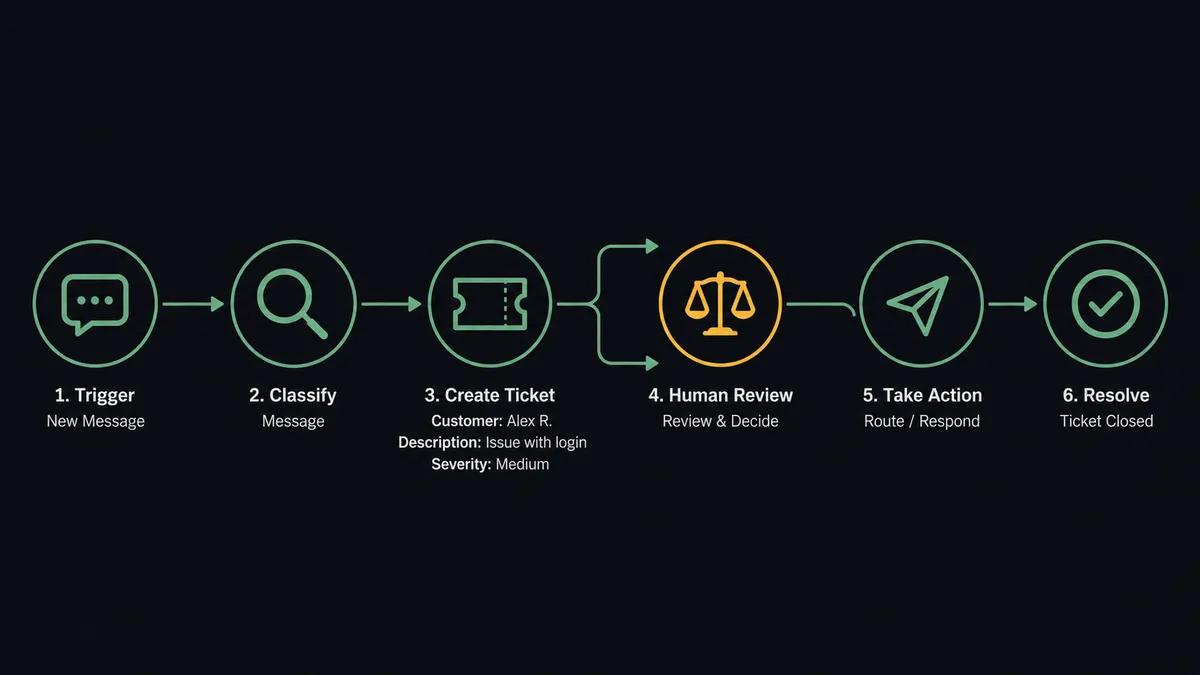
The flow starts on Intercom’s New Conversation trigger, which fires the moment a customer opens a chat. From there, FlowRunner reads the conversation and pulls the contact’s history with Get Contact, so the flow has more than just the raw message text to work with. It then calls Convert Conversation to Ticket on the Intercom side to formalize the escalation, and Create Issue on the Jira Issues side to file the actual engineering ticket, populating the customer name, issue description, and severity level the same way Jira’s own escalation scenario describes: a structured issue with full context, created within seconds of the conversation being flagged, not after someone gets around to reading it.
From there the connection keeps both systems in sync. Add Attachment carries the original message into Jira as supporting evidence. Assign Issue routes the ticket to a person. Add Comment logs any additional context the flow picked up. And Reply to Conversation sends the Jira issue link back into Intercom, so the rep and the customer can see tracking status without anyone opening a second tab. That closes the loop: the ticket exists in Jira with real data, and the conversation in Intercom carries a live reference to it.
Can an AI agent run it? (and why a human stays in the loop)
This is not a sync tool. An AI agent sitting on top of this connection reads each conversation, classifies its severity and sentiment, and decides for itself which Jira actions to call and in what order, the same way a person would triage before filing a ticket. The upgrade over a plain trigger-action integration is that the agent reasons about the data instead of following a fixed rule every time.
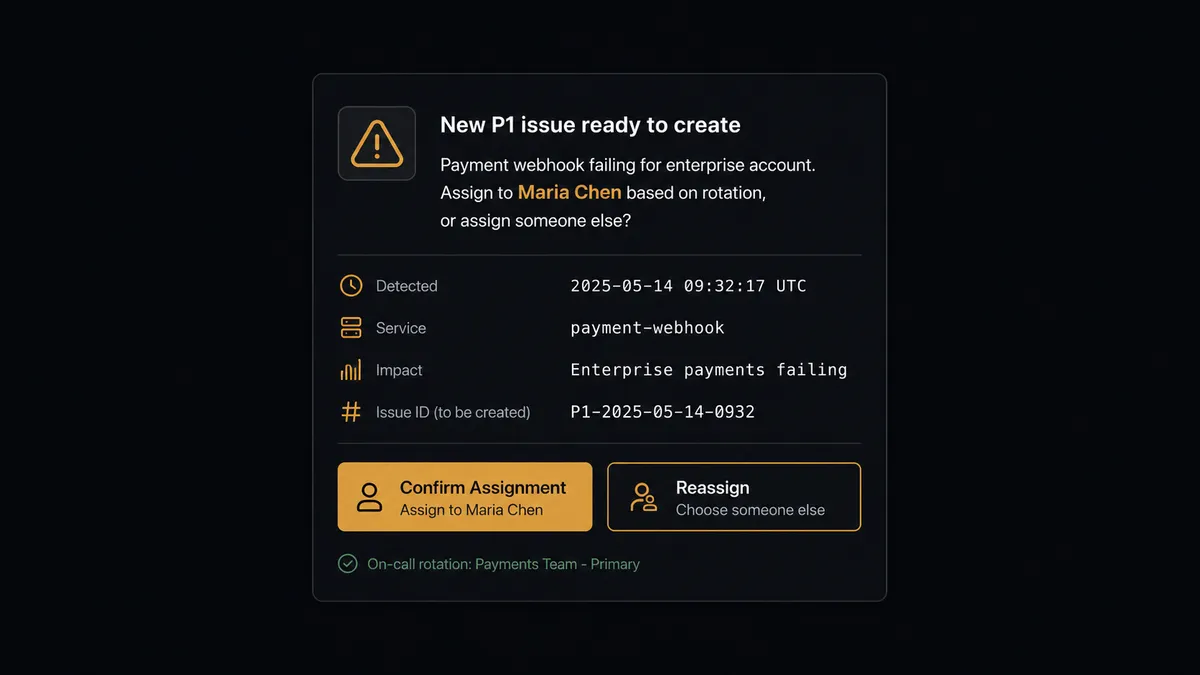
The consequential step is assignment, and that is exactly where the agent stops. When it flags an issue as P1, or notices the issue touches a component that has caused problems before, it does not auto-assign to the next name in the rotation. Instead it invokes a human-in-loop flow as a tool: it posts a Slack message to the team lead that reads something like “New P1 issue ready to create: [issue summary]. Assign to [suggested assignee] based on rotation, or do you want to assign someone else?” The message carries the suggested assignee, the reasoning behind it, and a way to redirect. The workflow pauses there. The lead confirms or reassigns, and the agent resumes with that decision, logging who decided and when in the audit trail. This is the digital andon cord: the agent knows when to stop and ask, and it is the agent’s own judgment about the situation, not a hardcoded priority threshold, that triggers the pause.
FlowRunner vs Zapier
Zapier genuinely makes this connection easy for a non-technical team: a New Conversation trigger tied to a Create Issue action is a standard Zap, and plenty of support teams run exactly that today with no engineering involvement. Where it stops is judgment. A Zap files every ticket the same way regardless of severity, and there is no native mechanism for pausing on a P1 to confirm who should own it; that logic has to be bolted on with extra filters and paths, if it can be built at all.
| Capability | Zapier | FlowRunner |
|---|---|---|
| Human-in-the-loop on assignment | Not native; requires manual workaround steps | Native: the agent invokes a human-in-loop flow as a callable tool |
| Users included | Priced per user on most plans | Unlimited users on every tier |
| AI provider model | Zapier-hosted AI credits | BYOK: connect your own AI provider account |
| Self-hosting | Not available | Available on the Enterprise tier |
| Pricing model | Per-task pricing that scales with volume | Transparent workflow-based tiers with a fixed execution ceiling |
Before and after
| Category | Before | After |
|---|---|---|
| Ticket creation | A rep manually creates a Jira ticket after reading and triaging the conversation | Jira issue created with full context within seconds of the conversation being flagged |
| Context transfer | Engineer receives a bare subject line and reopens Intercom to reconstruct what happened | Engineer gets customer name, severity, contact history, and the original conversation attached automatically |
| Assignment | Tickets sit unassigned until someone notices, or go to the next name in rotation regardless of fit | Agent proposes an assignee based on rotation and component history; a team lead confirms P1s before assignment |
| Customer visibility | Rep checks Jira separately to give the customer a status update | Agent replies in the Intercom conversation with the Jira tracking link automatically |
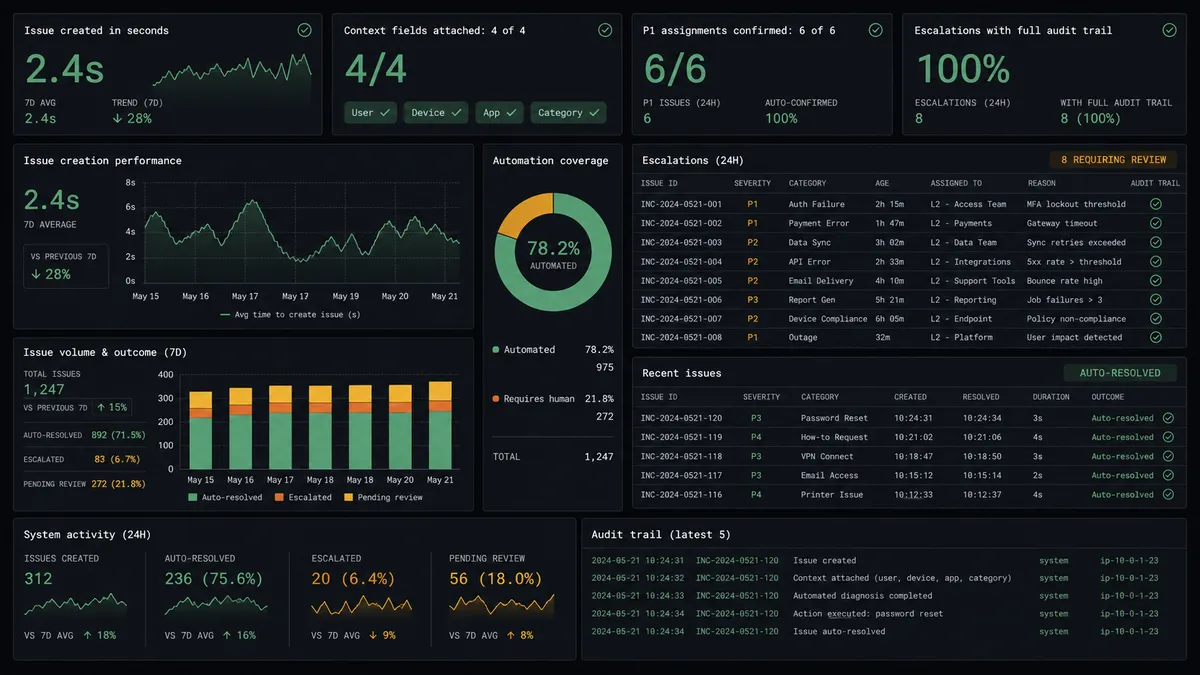
| Audit trail | No consistent record connecting a support conversation to the engineering ticket it produced | Every escalation logs the conversation, the ticket, the assignment decision, and who made it |
What you can build
Escalation with rotation-aware assignment. New Conversation triggers a Jira issue creation with severity and customer context attached, and the agent pauses to confirm the assignee with a team lead whenever the issue is a P1 or touches a sensitive component.
Resolution loop back to the customer. The agent watches for a Jira issue moving to Done, then calls Reply to Conversation in Intercom to tell the customer their issue is resolved and tags the conversation closed, so nobody has to remember to circle back.
Evidence attached automatically. Add Attachment and Add Comment carry the original conversation transcript into the Jira issue, so an engineer debugging the ticket has the customer’s own words without opening Intercom.
Blocked-issue heads-up for support. Each morning the agent runs a JQL search for blocked or unassigned issues tied to open Intercom escalations, tags the relevant conversations, and notifies support leads so a customer waiting on blocked engineering work gets a heads-up before they ask.
Common questions
Is it free to connect Intercom and Jira Issues on FlowRunner? FlowRunner has a free plan with 100 executions a month, every integration included, and no credit card required, and new accounts get 14 days of Professional on top. No credit card is required to start.
Can I self-host the Intercom to Jira Issues connection? Yes. The Enterprise tier includes a self-hosted deployment option with unlimited audit retention, in addition to the cloud-hosted Growth, Professional, and Business tiers.
Does the agent need my own OpenAI key? FlowRunner runs on a bring-your-own-key (BYOK) model, so you connect the AI provider account you already use rather than paying FlowRunner a markup on model usage.
What happens when the agent isn’t sure whether to assign a Jira issue? The agent pauses the workflow and sends the team lead a Slack message with the suggested assignee, the reasoning, and the option to reassign. The workflow resumes only after a person responds.
Does this replace my support or engineering team? No. FlowRunner is a scale lever, not a replacement. The agent handles the mechanical work of reading, classifying, and filing; people still make the assignment and resolution calls that need judgment.
Which Intercom trigger starts the Jira issue creation flow? New Conversation is the most common starting trigger, but New Ticket or Conversation Closed can drive the same flow if your team escalates from tickets or wants a post-resolution log entry instead.
Getting started
FlowRunner has a free plan with 100 executions a month, every integration included, and no credit card required, and new accounts get 14 days of Professional on top. Connect Intercom and Jira Issues, pick your trigger, and add the human-in-loop step before you turn it on.
Start free at flowrunner.ai, or book a walkthrough at calendly.com/flowrunner/intro.
Frequently asked questions
Is it free to connect Intercom and Jira Issues on FlowRunner?
FlowRunner has a free plan with 100 executions a month, every integration included, and no credit card required, and new accounts get 14 days of Professional on top. No credit card is required to start.
Can I self-host the Intercom to Jira Issues connection?
Yes. The Enterprise tier includes a self-hosted deployment option with unlimited audit retention, in addition to the cloud-hosted Growth, Professional, and Business tiers.
Does the agent need my own OpenAI key?
FlowRunner runs on a bring-your-own-key (BYOK) model, so you connect the AI provider account you already use rather than paying FlowRunner a markup on model usage.
What happens when the agent isn't sure whether to assign a Jira issue?
The agent pauses the workflow and sends the team lead a Slack message with the suggested assignee, the reasoning, and the option to reassign. The workflow resumes only after a person responds.
Does this replace my support or engineering team?
No. FlowRunner is a scale lever, not a replacement. The agent handles the mechanical work of reading, classifying, and filing; people still make the assignment and resolution calls that need judgment.
Which Intercom trigger starts the Jira issue creation flow?
New Conversation is the most common starting trigger, but New Ticket or Conversation Closed can drive the same flow if your team escalates from tickets or wants a post-resolution log entry instead.