HeyGen + YouTube: Campaign Video Rendered, Reviewed, Then Published
Connect HeyGen and YouTube so finished campaign video renders upload straight to a channel, optionally as an AI agent that pauses for a human before anything using a cloned voice goes public.
How do you connect HeyGen to YouTube?
A HeyGen render completing, whether from Create Video Batch, Generate Video from Template, or Create Video Translation, triggers an Upload Video call on YouTube that publishes the finished file to your channel as a private draft with Set Video Thumbnail applied. FlowRunner is a visual AI-agent orchestration platform where automations run autonomously and pause for human judgment on the steps that carry real consequence. The same connection can run as an AI agent that reasons about which cut is ready, checks it against the brand glossary, and invokes a human-in-loop step before a video with a cloned voice or a public audience goes live. That upgrade is the difference between a sync tool and an orchestration layer.
The problem it solves
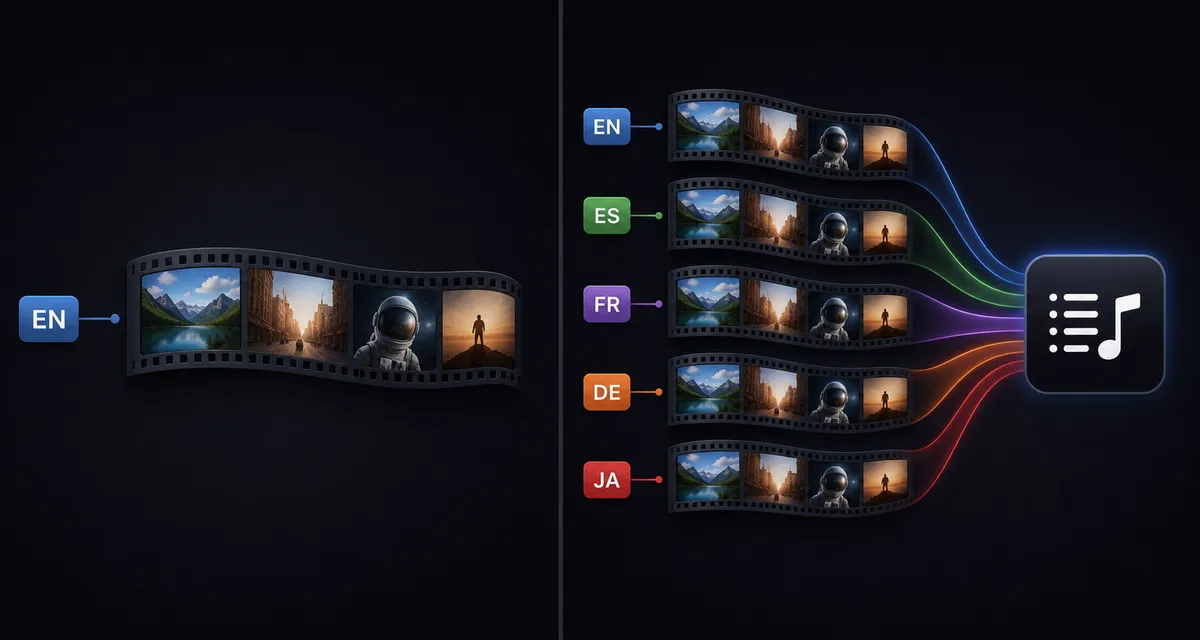
A marketing ops lead running a campaign with five language variants ends up managing two separate manual chains. The first is production: submitting each HeyGen render one at a time, checking status by hand, downloading files, and tracking which variant is done in a spreadsheet. The second is publishing: uploading each finished file to YouTube, writing the title and description, setting a thumbnail, and remembering which cuts still need a human to actually look at them before they go live. Neither chain talks to the other, so the handoff between “video is rendered” and “video is on the channel” is a person copying a file from one tool to the next.
The risk compounds with scale. A campaign with 20 or 30 template variants means 20 or 30 manual uploads, each one an opportunity for the wrong cut, the wrong thumbnail, or an unreviewed translation to reach an audience. Errors caught after a video goes public cost more than errors caught before, and a producer checking render status one video at a time doesn’t scale past a handful of variants without falling behind.
How it works: the connection
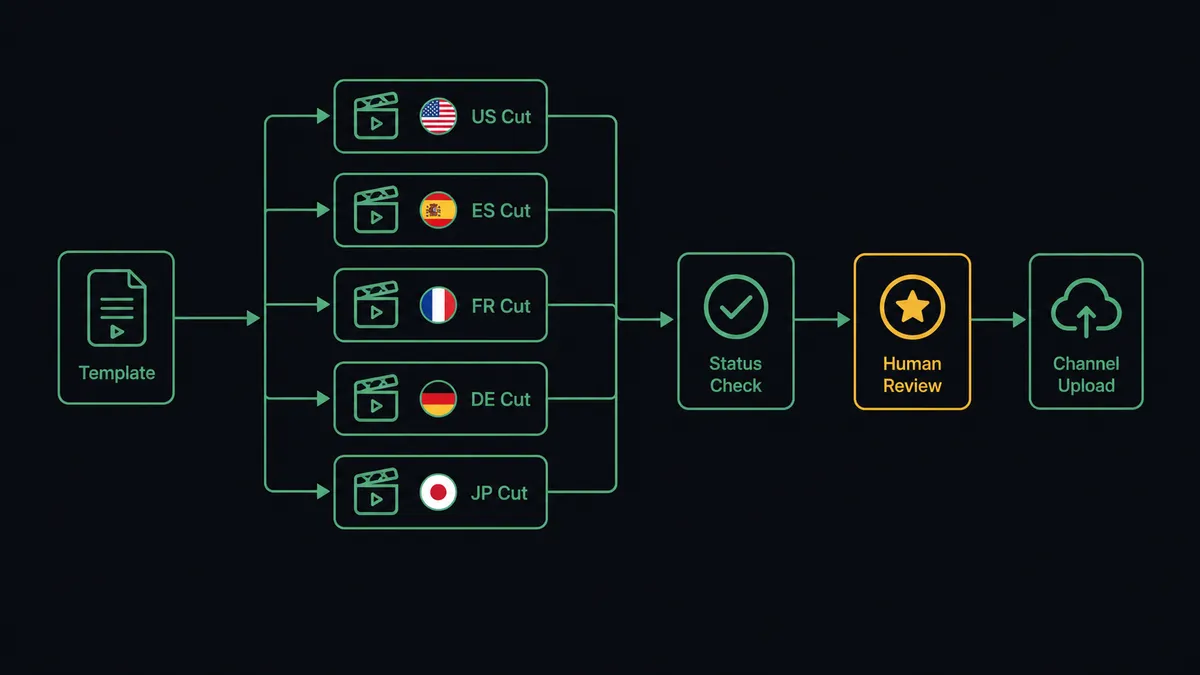
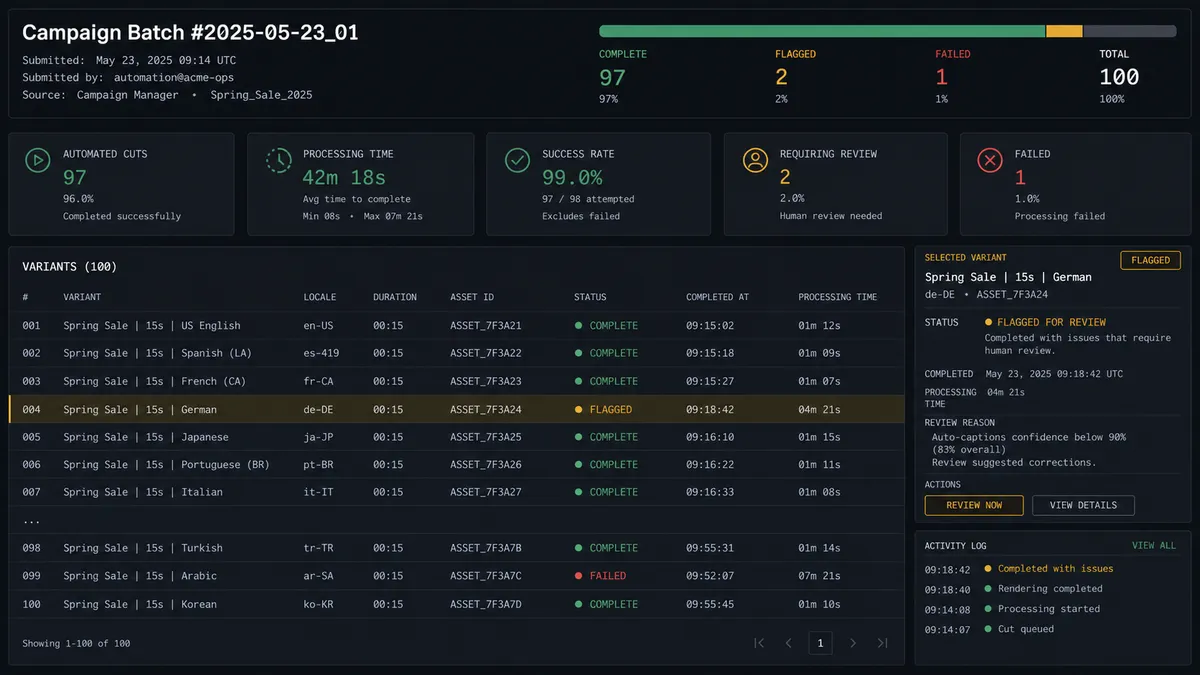
The flow starts on the production side. The agent reads a template’s variable schema with Get Template, fills it from the campaign sheet, and submits up to 100 renders in a single Create Video Batch call. Instead of checking each video individually, it tracks the run with Get Video Batch and Get Bulk Video Statuses, which return statuses for up to 100 videos in one request.
As each cut finishes, Save Video to File Storage pulls it into FlowRunner’s storage and returns a stable URL. For the hero cut destined for the channel, the agent calls Upload Video on YouTube to publish the file as a private draft, then Set Video Thumbnail applies the campaign artwork and Update Video fills in the title, description, and tags. The private draft link goes into the content review channel, matching the same pattern YouTube’s own connector uses for any upload: the mechanical work is automated, and the go-live decision waits for a person.
Can an AI agent run it? (and why a human stays in the loop)
The agent does not just move files from Create Video Batch to Upload Video in a fixed order. It reads the batch results, reasons about what it finds, and picks its next action from the tools available to it, including a human-in-loop step it can call exactly like any other action.
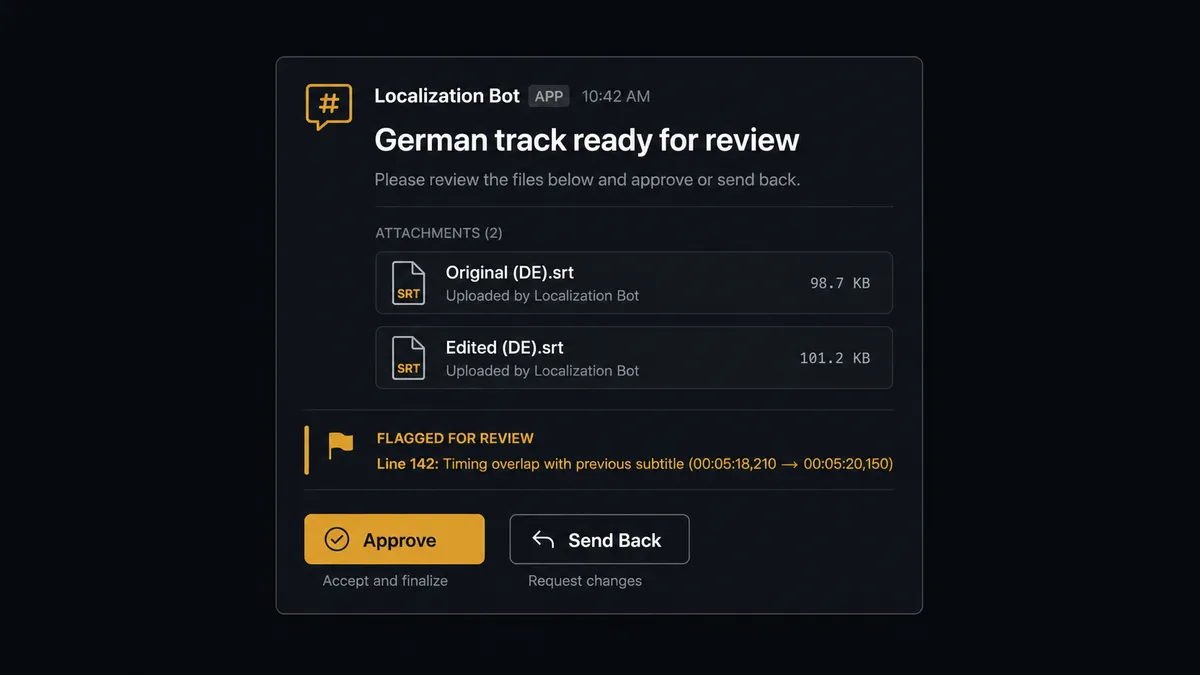
Here is a real decision moment. The campaign includes a German cut that uses a cloned voice of the company’s spokesperson, one of several variants Create Video Translation produced with voice cloning enabled. Before that cut renders, the agent opens a Create Proofread Session, pulls the draft subtitles, and compares them against the terms in the brand glossary. It finds a product name translated inconsistently with the glossary and a line that reads differently in tone from the source script. Rather than proceeding, the agent packages the context, original and edited SRT links, the specific lines it flagged, and a summary of why, and posts it to the regional reviewer in Slack: “The German track for the launch video is ready. Review the subtitles here, original and editable SRT attached. Rendering uses your spokesperson’s cloned voice and consumes render credits; reply approve when the transcript is right.” The reviewer corrects two lines and approves. Only then does Generate Video from Proofread spend the render credit.
The second gate sits later, at the YouTube boundary. Once the hero cut is uploaded as a private draft, the agent does not flip it public on its own. It posts the preview link to the content review channel with a plain question: approve to publish, or send it back? A channel owner watches the actual video, not just a status report, and makes the call. This is not a hardcoded rule triggered by a threshold. It is the agent recognizing that a cloned voice and a public channel are both consequential enough to warrant a person’s sign-off, and routing to that person with everything they need to decide quickly. This is not a sync tool. The agent knows when to stop and ask.
FlowRunner vs Zapier
Zapier is a genuinely fast way to wire a HeyGen webhook to a YouTube upload for a single video, and its editor is approachable for a non-technical marketing team building a simple two-step Zap. For a one-off “when a video finishes, upload it” connection, that simplicity is real and worth acknowledging.
Where it runs into limits is exactly the scenario above: a batch of variants, a translation review gate, and a publish approval that has to hold specific videos back without stalling the rest of the campaign. Zapier’s model is built around linear steps and paid Filter or Path add-ons, not a native review-and-resume pattern.
| Capability | FlowRunner | Zapier |
|---|---|---|
| Human-in-the-loop | Native tool the agent invokes mid-workflow, with full context and a resume step | No built-in approval pattern; typically bolted on with a separate app or manual check |
| Users included | Unlimited on every tier | Priced per user on most plans |
| AI provider | BYOK, bring your own model and provider | Zapier-hosted AI credits, usage-metered |
| Batch handling | Agent reasons across a full batch and holds specific items back | Each run is largely independent; batch logic needs custom workarounds |
| Pricing model | Transparent workflow-based tiers with a fixed execution ceiling | Per-task pricing that scales unpredictably with campaign volume |
Before and after
| Metric | Before | After |
|---|---|---|
| Campaign variant production | Each language and clip is its own manual project | Create Video Batch and a shared template produce all variants as one reviewed run |
| Translation quality control | Errors surface after publish, when every fix means a full re-render | A reviewer corrects subtitles as text before Generate Video from Proofread spends a render credit |
| Upload workflow | Uploading, titling, tagging, and thumbnailing is a hand sequence per video | The agent uploads as a private draft with metadata and thumbnail already set |
| Publish decision | Publish depends on whoever remembers to check the queue | A channel owner approves from a Slack preview link before the video goes public |
| Status tracking | A producer checks render status one video at a time | Get Bulk Video Statuses reports up to 100 renders in a single call |
What you can build
Template campaign to channel launch. Fill a HeyGen template’s variables from a campaign sheet, submit the batch with Create Video Batch, and push the approved hero cut to YouTube with Upload Video and a matching thumbnail.
Localized channel library. Run Create Video Translation with voice cloning for each target market, route the proofread session to a regional reviewer, then upload the corrected SRT to YouTube with Upload Caption alongside the localized video.
Webinar to shorts pipeline. Submit a long recording to Create AI Clipping Job, let the content owner pick which clips represent the brand, and upload the approved clips to YouTube as private drafts pending a channel owner’s sign-off.
Weekly spokesperson update. Generate a recurring video from a template using a Digital Twin Avatar, hold it for the same reviewer who approved the original consent flow, and publish it to a standing playlist once approved.
Getting started
Connect HeyGen and YouTube in FlowRunner and build this as a plain connection or as an AI agent with the review gates described above. FlowRunner has a free plan with 100 executions a month, every integration included, and no credit card required, and new accounts get 14 days of Professional on top. Start at flowrunner.ai or book a walkthrough at calendly.com/flowrunner/intro.
Frequently asked questions
Is it free to connect HeyGen and YouTube on FlowRunner?
Yes. FlowRunner has a free plan with 100 executions a month, every integration included, and no credit card required, and new accounts get 14 days of Professional on top.
Can I self-host this HeyGen to YouTube workflow?
Yes, on the Enterprise tier. Self-hosting keeps campaign video and channel credentials on your own infrastructure while FlowRunner still runs the orchestration logic.
Does the agent need my own OpenAI key?
FlowRunner runs on a bring-your-own-key model for AI providers, so you connect the provider and model you already use rather than being locked into one vendor.
What happens when the agent isn't sure whether to publish?
The agent pauses the workflow and invokes a human-in-loop step as a tool, sending the reviewer full context and the decision options through Slack, email, or WhatsApp, then resumes with whatever the human decides.
Does this replace my HeyGen or YouTube subscription?
No. FlowRunner connects the accounts you already have; it does not replace HeyGen's rendering credits or your YouTube channel.
What if a render fails partway through a HeyGen batch?
The agent checks Get Bulk Video Statuses, flags any failed or incomplete items, and holds the campaign back from YouTube rather than publishing a partial set; a person decides whether to retry or drop the failed cut.