How to Connect Google Sheets with Slack (With or Without an AI Agent)
Connect Google Sheets and Slack so a new or updated row triggers a Slack message automatically, or run it as an AI agent that reads the data, decides what to escalate, and pauses for a human on the step that carries real consequence.
How do you connect Google Sheets to Slack?
You connect Google Sheets to Slack by setting the On New Row (or On New or Updated Row) trigger in Google Sheets to fire a Send Message to Channel action in Slack, passing the row data as the message body. FlowRunner is a visual AI-agent orchestration platform where automations run autonomously and pause for human judgment on the steps that carry real consequence. The same connection can run as an AI agent that reads each row, decides what to post automatically, and invokes a human-in-loop flow when a row needs a decision before it goes anywhere.
The problem with handling this manually
Operations teams use Google Sheets as a shared record of truth for processes that span multiple systems. Someone submits a form, a row lands in the sheet, and then nothing happens automatically. A person has to notice the row, read it, decide what to do, send a Slack message or email, and wait for a response. During that window, exceptions fall through the cracks. A row with a missing required value sits until the right person spots it. An unusual submission gets treated the same as a routine one because there is no logic to tell them apart.
The Slack notification problem compounds this. Even when teams set up a basic Zapier flow to post new rows to a channel, every row looks the same. There is no triage. A $300 routine reorder and a $30,000 anomaly land in #operations with identical formatting. The team has to read everything to find the two rows that actually need attention. That is the manual process: high volume, low signal, decisions deferred until someone has time.
How it works: the connection
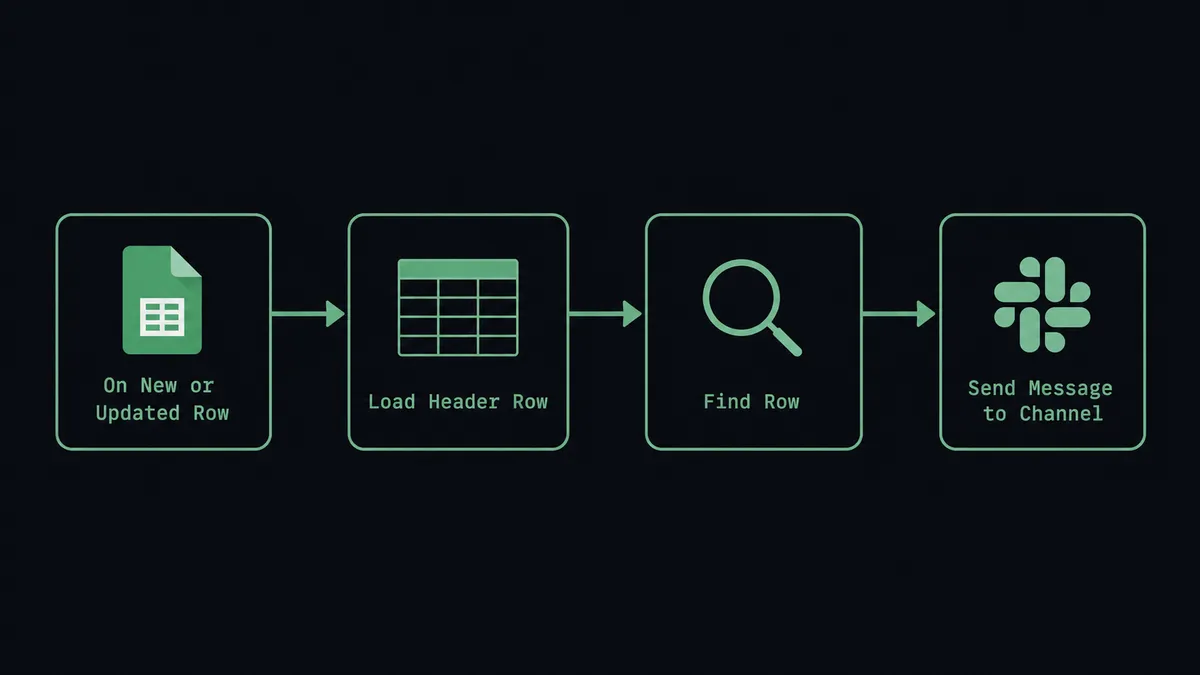
The trigger is On New Row or On New or Updated Row from the Google Sheets connector. FlowRunner watches the sheet you specify and fires the flow when a row appears or changes.
The agent then calls Load Header Row to confirm the column map, and Get Rows or Find Row to pull the full row with context. From there, the Slack action takes the mapped fields and posts them as a formatted message to the channel you choose.
For simple notification use cases, you map directly: row column A becomes the message subject, column B becomes the amount, column C becomes the submitter name. The Send Message to Channel action assembles the message and posts it. The flow runs in under 30 seconds from trigger to notification.
If you want the sheet to reflect outcomes, the agent calls Update Row or Update Cell to write a status back after the downstream work is done. The sheet stays current without anyone opening it.
Can an AI agent run it? (and why a human stays in the loop)
A direct Zapier or n8n connection posts every row to Slack. An AI agent reads the row and decides what the row means.
The agent has access to Google Sheets actions as tools: Find Row, Get Rows, Load Header Row, Update Cell, Format Row. It also has Slack actions: Send Message to Channel, Send Direct Message, Update Message in Channel. On each new row, the agent reads the values, compares them against context it has built over time, and makes a call.
A routine row with all required fields and an amount inside the expected range gets processed and posted automatically. The agent calls Update Cell to mark it “processed” in the sheet and posts a one-line summary to the team channel. The person who submitted the form sees it resolved without anyone touching it.
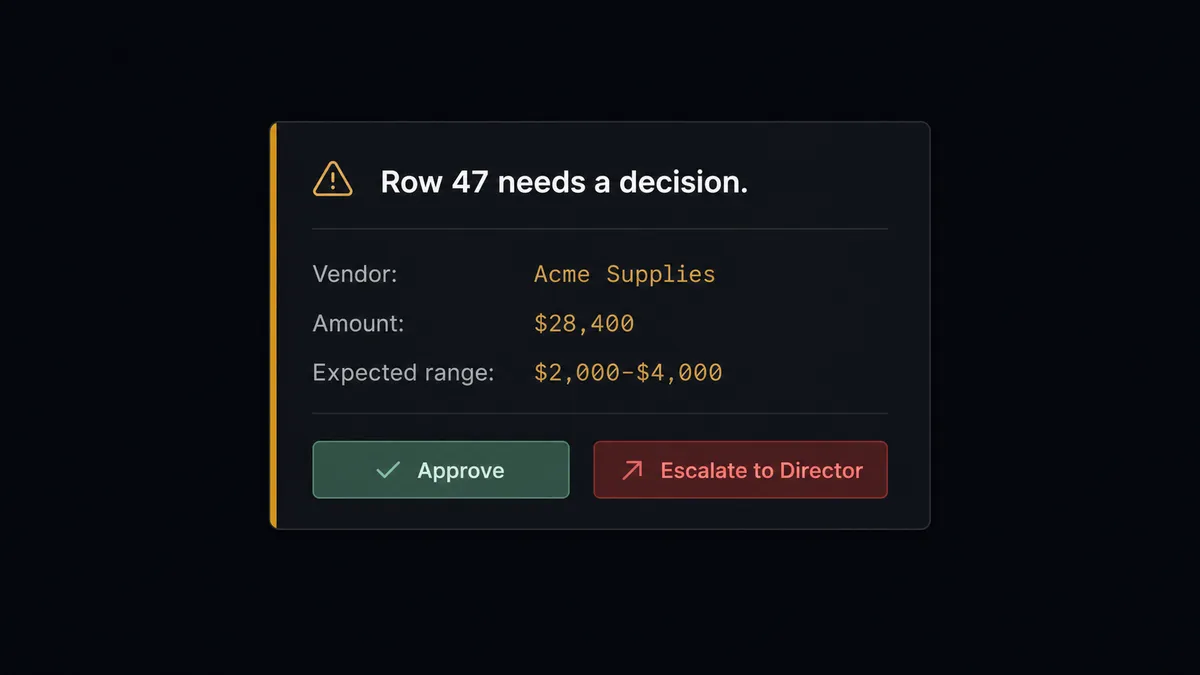
A row with a missing required field, or an amount 10 times the vendor’s historical average, gets a different response. The agent does not fail. It does not skip the row. It invokes the human-in-loop flow as a callable tool.
The escalation flow sends a Slack message with Block Kit formatting: here is what the agent found, here is why it is not processing automatically, here are the options. Approve and Escalate buttons appear. The submitter or the team lead clicks one from their phone. The On Block Action trigger fires, the agent receives the decision, calls Update Cell to write the outcome back to the sheet, and resumes. The approval, the approver’s identity, and the timestamp are in the audit trail.
This is not a threshold. The agent does not escalate every row above $10,000. It escalates because this vendor’s usual amount is $2,000 and this row says $28,400. The decision to involve a human is the agent’s own judgment given its instructions and the data it has seen.
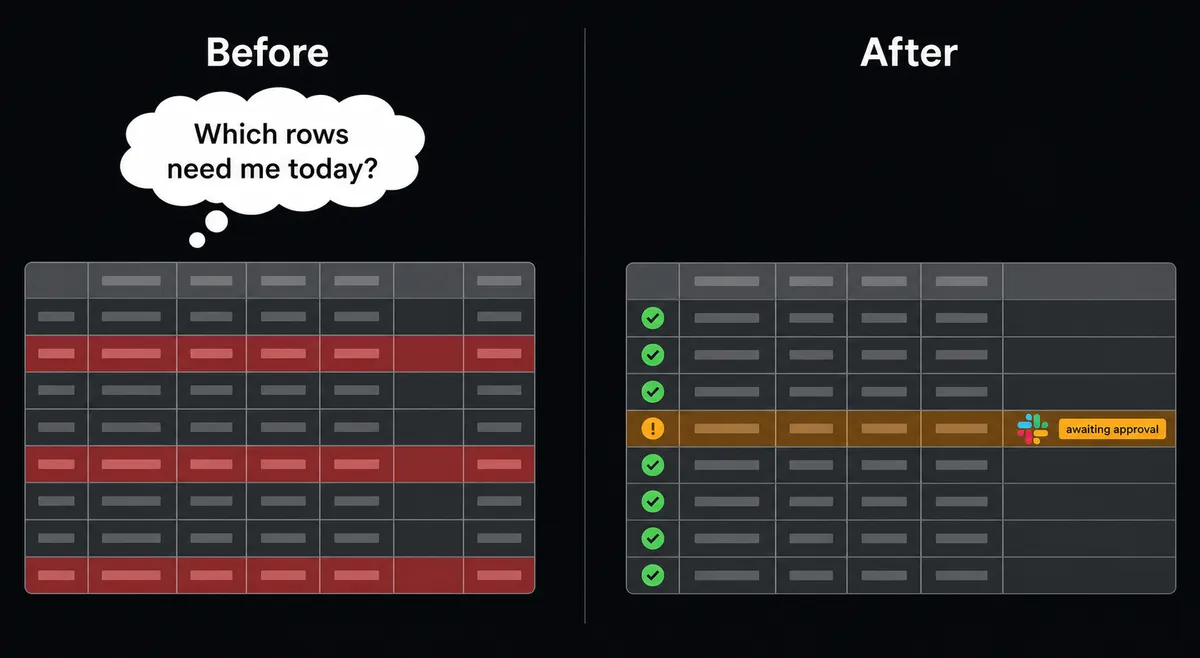
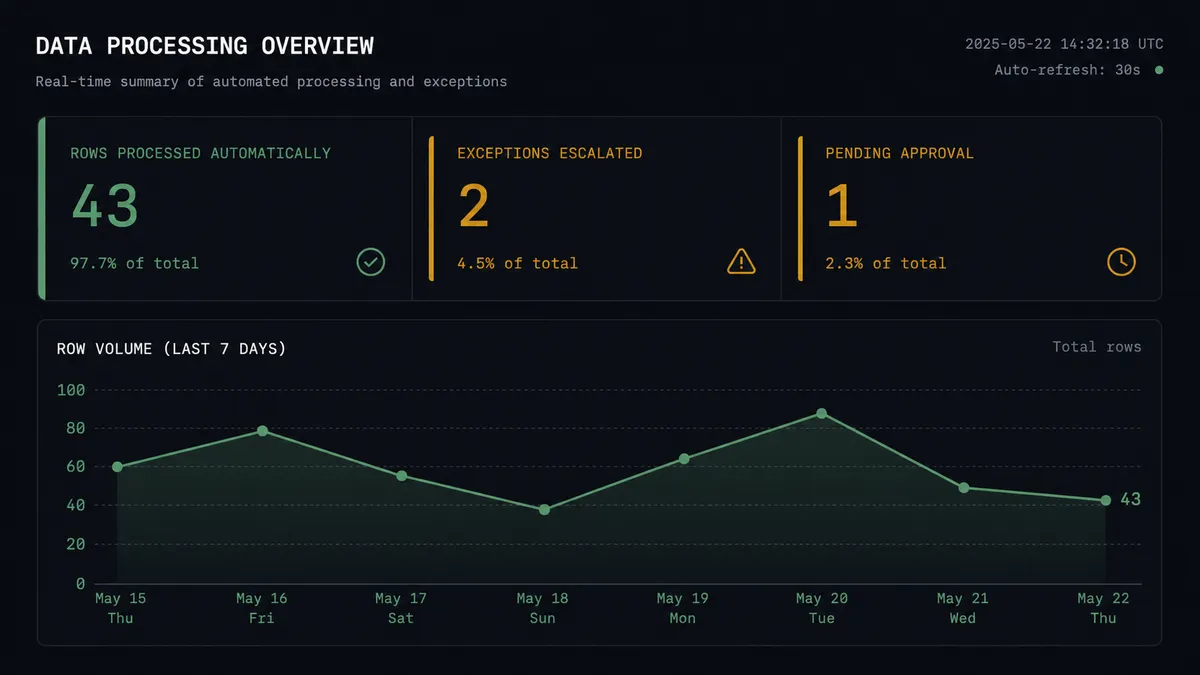
Your team handles the two rows that need them. The agent handles the other forty-three.
FlowRunner vs Zapier for Google Sheets and Slack
Zapier is the right choice for simple trigger-action automation. It has a large connector library, excellent documentation, and a low barrier to entry for non-technical users. For “post a new row to a Slack channel,” Zapier works and it works well.
The difference appears when the rows are not all the same.
| Feature | Zapier | FlowRunner |
|---|---|---|
| Native AI agent (reads and reasons about data) | No (Zapier Tables + AI steps are add-ons) | Yes, built in |
| Human-in-loop with interactive Slack buttons | No native support | Yes, On Block Action resumes the workflow |
| Write outcome back to Google Sheets | Manual Zap step, no context | Agent decides when and what to write back |
| Unlimited users on every tier | No (Zapier charges per user on some plans) | Yes, all tiers |
| Bring your own AI provider keys | No | Yes (BYOK) |
| Audit trail with approver identity | No | Yes, Professional and above |
Zapier is a sync tool. FlowRunner is an orchestration layer. If your rows are uniform and you want a notification, Zapier is simpler. If some rows require judgment, you need an agent.
Before and after
| Category | Before | After |
|---|---|---|
| Row notification | Someone checks the sheet periodically and sends a Slack message by hand | Every new or updated row triggers a Slack notification within 30 seconds |
| Exception handling | Unusual rows sit until spotted; treatment same as routine rows | Agent identifies exceptions and escalates with context; team only touches the rows that need them |
| Sheet currency | Sheet reflects what was submitted, not what was done | Agent writes outcome status back to the row after processing |
| Approval tracking | Email chains or verbal confirms, no structured record | Slack button clicks captured with approver identity and timestamp in the audit trail |
| Team Slack noise | All rows posted equally, high volume, low signal | Routine summaries batched; exceptions surface individually with context |
What you can build
Form submission pipeline. A form submission lands as a new row via On New Row. The agent calls Add Row to confirm the log entry, reads the row with Load Header Row and Find Row, posts a formatted summary to the intake channel via Send Message to Channel, and updates the row status with Update Cell. One submission becomes a logged, routed, and acknowledged record.
Data quality gate. Every new row runs through an agent that checks required fields and value ranges. Rows that pass are marked “clean” with Update Cell and forwarded to downstream systems. Rows that fail are held, Format Row highlights them in the sheet, and the agent sends a Direct Message to the data owner with the specific issue and a request to correct it before reprocessing.
Scheduled sheet digest. On a Monday morning schedule, the agent calls Export Sheet to generate a file of the current data and sends a formatted report to the leadership channel via Send Message to Channel using Block Kit. No one opens a spreadsheet. The report arrives.
Exception approval flow. An ops agent monitors a tracking sheet for rows flagged by another process. When a flagged row appears, the agent reads the full context with Get Rows, sends a Slack message with Approve and Escalate buttons to the responsible manager via Send Direct Message, and waits. On Block Action fires with the decision. The agent writes the outcome to the sheet with Update Row and posts a confirmation to the team channel.
New row to project channel. When a new client row appears in a tracking sheet, the agent calls Create Public Channel or Create Private Channel in Slack to spin up a dedicated project workspace, calls Invite User to Channel to add the relevant team members, and posts an opening message with the client details. The project channel is live before anyone has read the sheet.
Common questions
Is it free to connect Google Sheets and Slack on FlowRunner?
FlowRunner has a free plan with 100 executions a month, every integration included, and no credit card required, and new accounts get 14 days of Professional on top. After that, Growth is $45 per month with 12,000 executions included. All tiers include unlimited users and workflows.
Can I self-host FlowRunner?
Yes. FlowRunner offers a free Community Edition for self-hosted single-instance deployments and an Enterprise self-hosted tier with clustering and full compliance features. The cloud tiers at $45, $299, and $999 per month are the faster way to get started.
Does the AI agent need my own OpenAI key?
FlowRunner uses a bring-your-own-key model. You connect your own AI provider credentials, whether that is OpenAI, Anthropic, or another supported provider. You control the model choice and costs directly.
What happens when the agent is not sure what to do?
The agent invokes a human-in-loop flow as a callable tool. It pauses execution, sends a Slack message with full context, and waits for a decision. When the human responds via interactive buttons, the agent resumes. The decision, the approver identity, and the timestamp are captured in the audit trail.
How is FlowRunner different from Zapier for this connection?
Zapier connects Google Sheets to Slack as a simple trigger-action pair. FlowRunner runs an AI agent that reads the data, reasons about what it means, and decides which rows to post, which to flag, and which to escalate to a specific person. You also get unlimited users on every tier and no per-execution surprise billing.
Can the agent write back to Google Sheets after a Slack approval?
Yes. After a human approves or rejects in Slack, the agent can call Update Row or Update Cell to write the decision status back to the sheet. The spreadsheet becomes a live record of what was processed and who decided what.
Getting started
FlowRunner has a free plan with 100 executions a month, every integration included, and no credit card required, and new accounts get 14 days of Professional on top. Corporate email gets you in.
Connect both integrations from the FlowRunner integrations library:
Start with the direct trigger-action connection to verify the data flow. Add the AI Agent node once you know which fields matter and which exceptions your team actually cares about.
Start your trial at flowrunner.ai or book a 30-minute walkthrough at calendly.com/flowrunner/intro to see the agent reasoning and human-in-loop decision flow live.
Frequently asked questions
Is it free to connect Google Sheets and Slack on FlowRunner?
FlowRunner has a free plan with 100 executions a month, every integration included, and no credit card required, and new accounts get 14 days of Professional on top. After that, Growth is $45 per month with 12,000 executions included. All tiers include unlimited users and workflows.
Can I self-host FlowRunner?
Yes. FlowRunner offers a free Community Edition for self-hosted single-instance deployments and an Enterprise self-hosted tier with clustering and full compliance features. The cloud tiers at $45, $299, and $999 per month are the faster way to get started.
Does the AI agent need my own OpenAI key?
FlowRunner uses a bring-your-own-key model. You connect your own AI provider credentials, whether that is OpenAI, Anthropic, or another supported provider. You control the model choice and costs directly.
What happens when the agent is not sure what to do?
The agent invokes a human-in-loop flow as a callable tool. It pauses execution, sends a Slack message with full context, and waits for a decision. When the human responds via interactive buttons, the agent resumes. The decision, the approver identity, and the timestamp are captured in the audit trail.
How is FlowRunner different from Zapier for this connection?
Zapier connects Google Sheets to Slack as a simple trigger-action pair. FlowRunner runs an AI agent that reads the data, reasons about what it means, and decides which rows to post, which to flag, and which to escalate to a specific person. You also get unlimited users on every tier and no per-execution surprise billing.
Can the agent write back to Google Sheets after a Slack approval?
Yes. After a human approves or rejects in Slack, the agent can call Update Row or Update Cell to write the decision status back to the sheet. The spreadsheet becomes a live record of what was processed and who decided what.