Log New Google Drive Files in Google Sheets Automatically
Connect Google Drive and Google Sheets so every new file that lands in a watched folder is logged as a tracking row automatically, with an AI agent and a human in the loop on external sharing requests.
How do you connect Google Drive to Google Sheets?
You connect Google Drive to Google Sheets by setting the On New File trigger in Google Drive to watch an intake folder, then using Add Row in Google Sheets to log each file as a tracking row the moment it arrives. FlowRunner is a visual AI-agent orchestration platform where automations run autonomously and pause for human judgment on the steps that carry real consequence. The same connection can run as an AI agent that reads each file, reasons about what it finds, and routes external sharing requests to a person before anything leaves the organization.
The problem it solves
Right now, files land in a shared Drive folder and someone has to notice them. An ops coordinator or an executive assistant checks the folder periodically, opens each new file to see what it is, files it into the right subfolder by hand, and if anyone asks for it later, updates a spreadsheet with the file’s name, date, and location. The spreadsheet is supposed to be the tracking record, but it only reflects what someone remembered to type in, whenever they got around to it. During a busy week, files fall through the cracks. A client’s onboarding packet sits unfiled for two days. A generated report never gets its sharing permissions applied because the person who uploaded it assumed someone else would handle it.
The bigger risk sits in sharing. Granting access to an external collaborator is a judgment call: which role, which scope, is this person supposed to have it at all. Today that judgment call happens in a DM or a hallway conversation, with no consistent record of who asked, who approved, and what they got access to. When the tracking sheet and the actual folder state drift apart, the team spends the following week reconciling instead of doing new work. Nobody is careless here. The system simply gives them no way to notice a file and act on it in the moment.
How it works: the connection
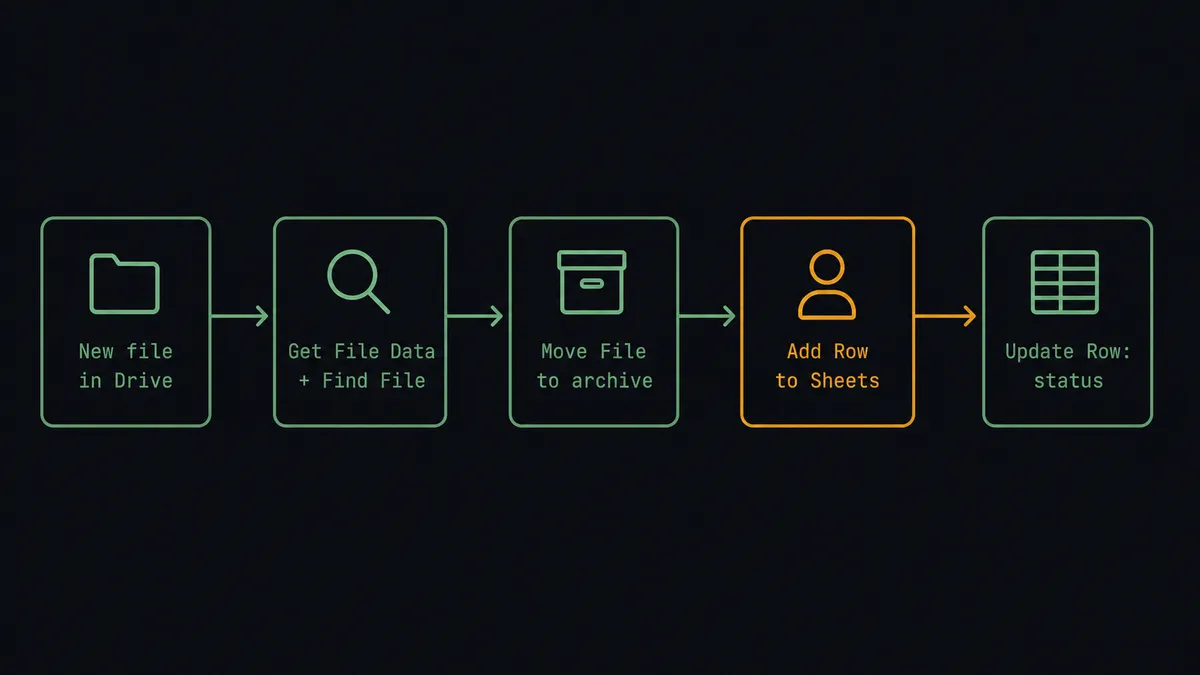
The On New File trigger fires the instant a file lands in a watched Google Drive folder. No polling, no delay.
From there, the agent calls Get File Data to read the filename, size, owner, and timestamp. It calls Find File to check whether a file with the same name already exists in the destination, so duplicates never make it into the tracker twice. If the file needs to move, the agent calls Move File to relocate the original from the intake folder into a structured archive path, and Rename File/Folder to apply the naming convention if the source file arrived with an inconsistent name.
Once the agent has confirmed the file’s details, it calls Add Row in Google Sheets to write the tracking record. Column mapping connects the Drive metadata to the right sheet columns: file name, folder path, upload timestamp, owner, and sharing status. After the file is fully processed, the agent calls Update Row or Update Cell to write the final status back, so the sheet always reflects what actually happened to the file, not just that it arrived.
The tracker is now current. The file is filed. No one opened either system to make it happen.
Can an AI agent run it? (and why a human stays in the loop)
A direct trigger-to-action connection handles the routine case: a file lands, it gets filed, a row gets written. The agent handles everything else, starting with the moment a file asks for something outside the organization.
The agent does not just call actions in sequence. It reads the file’s metadata and the sharing details attached to the upload, and it decides what to do. When a weekly report lands and the sharing scope is limited to the internal leadership team, the agent applies the sharing preference, files the report, and writes the row. When a new client engagement folder shows up requesting a share with an external email address, the agent stops.
This is where FlowRunner’s human-in-loop works differently from a basic conditional branch. The agent is not checking a hardcoded rule like “if recipient domain is external, escalate every time.” It weighs the full context: whether this folder regularly shares externally, whether the requested role is view-only or edit, and whether the file itself looks like something meant to leave the building. A view-only export shared with a known client contact might process without a pause. A request to grant edit access to an unfamiliar external address gets escalated every time.
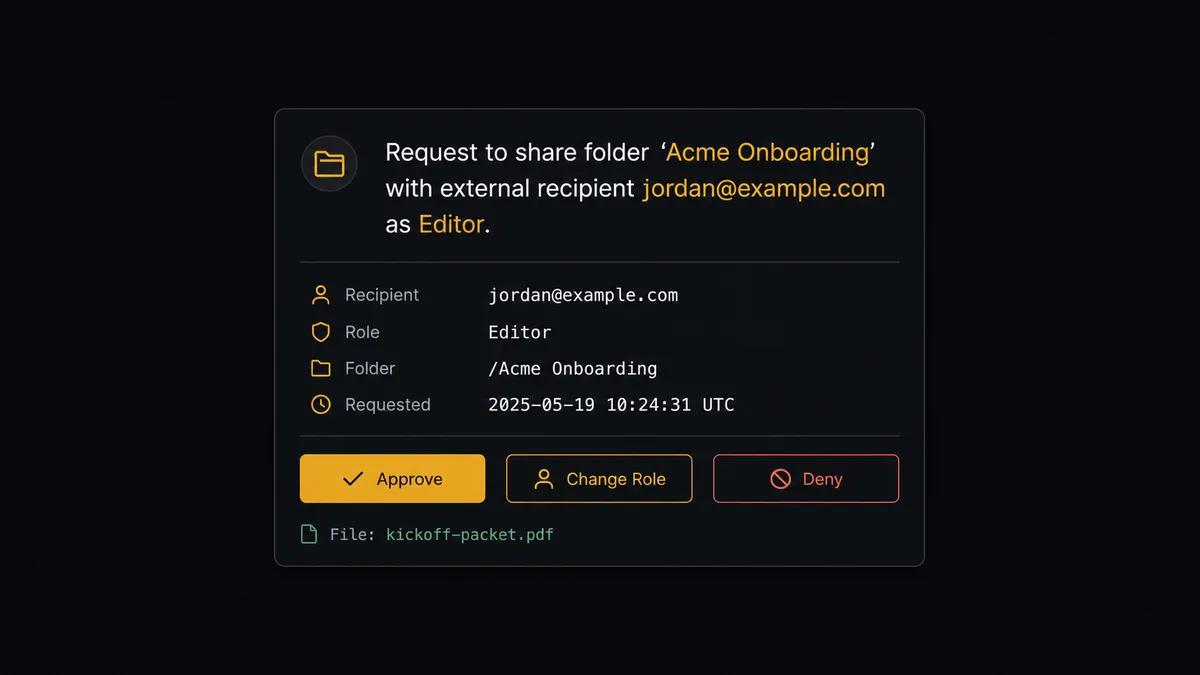
When it escalates, the agent invokes the human-in-loop subflow as a callable tool, which posts to Slack:
“Request to share folder ‘Acme Onboarding’ with external recipient jordan@example.com as Editor. File: kickoff-packet.pdf. Approve, change the role, or deny?”
The workflow pauses. The data owner reviews the request and responds. The agent resumes with the decision as input. On approval, it calls Add File Sharing Preference and writes the row to the tracker with the recipient, the role, and the approver’s name. On denial, it logs the rejection instead and never touches the sharing setting. The decision, the approver’s identity, and the timestamp all land in the audit trail.
This is not a sync tool. The agent knows when to stop and ask. Prospects call it a digital andon cord: like Toyota’s quality control pull cord, FlowRunner stops the line when the agent hits real uncertainty.
FlowRunner vs Zapier
Zapier is the right comparison for most teams connecting Google Drive and Google Sheets today. It has a large template library, a simple setup experience, and both connectors are mature and well documented on its platform. For a straightforward file-to-row flow, Zapier gets the job done quickly.
Where the comparison shifts:
| Capability | Zapier | FlowRunner |
|---|---|---|
| Human-in-loop | Not available natively; requires workarounds | Native: the agent invokes human oversight as a callable tool at any decision point |
| AI agent reasoning | Basic AI steps; no autonomous decision-making across tools | Agent reads file and sharing data, picks tools, and escalates based on context, not a fixed rule |
| Unlimited users | Seat-based pricing | All tiers include unlimited users |
| BYOK for AI | Not available | Bring your own AI provider keys; not locked into one model |
| Self-hosted option | Not available | Community Edition (free) and Enterprise self-hosted tiers |
| Pricing model | Per-task execution pricing | Workflow-based tiers with clear execution limits; no execution anxiety |
For a team that just wants new Drive files logged into a sheet and never deals with external sharing decisions, Zapier works. For a team where an unreviewed external share is the actual risk, the agent-plus-human-in-loop architecture is the meaningful difference.
Before and after
| Before | After | |
|---|---|---|
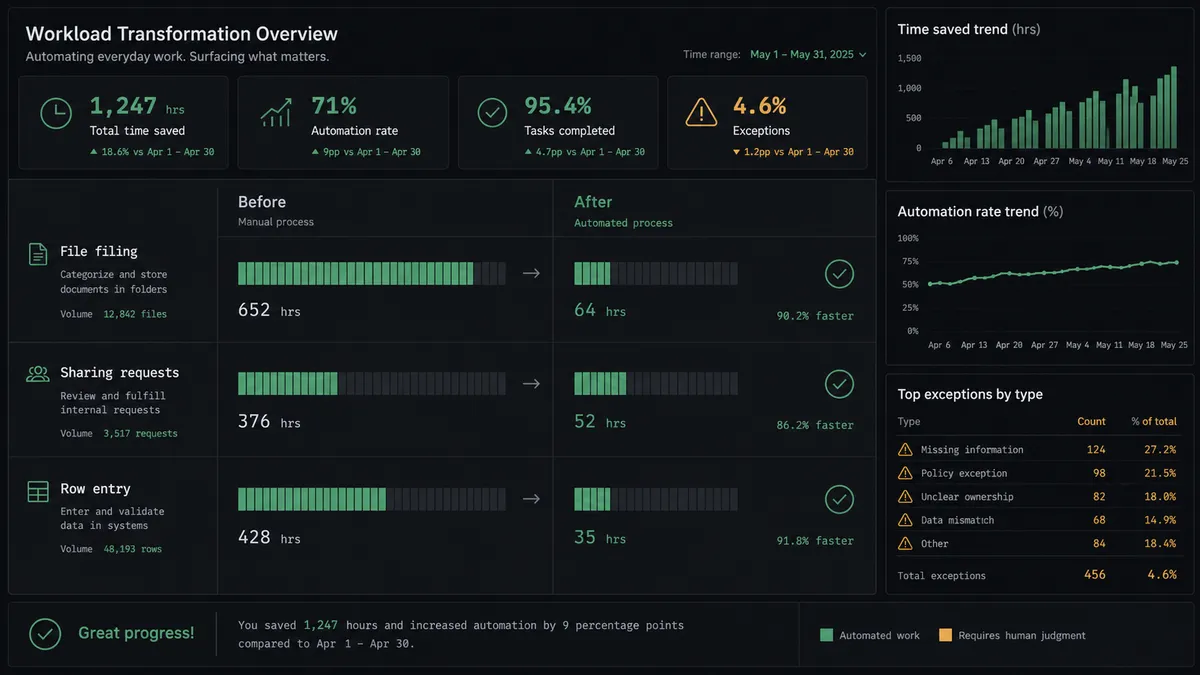
| File filing | Generated exports and inbound uploads are sorted into folders by hand | Documents land in the right folder with the right name automatically |
| Sharing requests | Forwarded in DMs with no consistent record of who got what | Applied automatically with a record of recipient, role, and approver |
| Row entry | Someone opens the file, then opens the sheet, and types the details in | Agent writes the row automatically from the file’s metadata |
| New file detection | Noticed when someone happens to check the folder | On New File fires the flow in real time |
| Audit trail | No record of who processed what or when | Every escalation and approval logged with identity and timestamp |
| Tracker accuracy | Reflects whatever a person remembered to enter | Reflects every file’s actual current status |
What you can build
Invoice intake with a live tracker. On New File fires when a vendor invoice lands in the intake folder. The agent calls Get File Data, files the original with Move File, and calls Add Row in Google Sheets to log the invoice. The finance channel gets a notification, and the sheet is the live AP queue with no manual entry.
Report distribution with a sharing log. A weekly report is generated and uploaded with Upload File. The agent calls Add File Sharing Preference to grant the leadership team view-only access, then Add Row to record who received it, what role they got, and when. The distribution list becomes self-documenting.
Client onboarding with an approval trail. On New Folder fires when a client engagement folder is created. The agent uploads the kickoff packet, and any request to share it externally routes through the human-in-loop check before Add File Sharing Preference runs. Add Row in the onboarding tracker logs the folder, the client, and the approval outcome in one place.
Row-triggered folder provisioning. On New Row fires when a new client is added to a Google Sheets intake tracker. The agent reads the row and calls Create Folder in Google Drive to stand up the client’s folder structure, then Update Row to write the folder link back to the sheet. New client, ready folder, no one dragging files around.
Scheduled report archive. On a schedule, the agent calls Export Sheet in Google Sheets to generate a PDF of the current tracker, then Upload File to archive it in Google Drive with a dated filename. The tracker’s history builds itself without anyone downloading a file by hand.
Common questions
Is it free to connect Google Drive and Google Sheets on FlowRunner? FlowRunner has a free plan with 100 executions a month, every integration included, and no credit card required, and new accounts get 14 days of Professional on top. After that, Growth is $45 per month. All tiers include unlimited users and unlimited workflows.
Can I self-host FlowRunner? Yes. FlowRunner offers a free Community Edition for self-hosted single-instance deployments. An Enterprise self-hosted tier is available for multi-instance clustering and the full compliance suite.
Does the AI agent need my own OpenAI key? FlowRunner uses a BYOK (Bring Your Own Keys) model. You connect your own AI provider credentials, so the agent runs on whatever model you choose. You are not locked into one provider.
What happens when the agent is not sure about a file or a sharing request? The agent pauses and routes the exception to a person instead of guessing. It packages the file name, the requested access, and its reasoning into a Slack message, waits for a decision, then resumes and records the outcome in the audit trail.
What triggers the flow in Google Drive? The On New File trigger fires the moment a file lands in a watched Drive folder. On New Folder and On File Updated are also available for provisioning and change-tracking flows.
Can the agent write back to Google Sheets after it processes a Drive file? Yes. The agent calls Add Row to log a new file and Update Row or Update Cell to write the processing status back once it is done. The sheet stays current without anyone opening it.
Getting started
Start on the free plan: 100 executions a month, every integration included, no credit card required, plus 14 days of Professional for new accounts. Corporate email required.
Connect both integrations from the FlowRunner connector library: Google Drive and Google Sheets. Both authenticate over OAuth2 and are ready to use as soon as you connect.
Build the trigger-to-action version first. Once the file-to-row flow is running, add the AI agent layer and the human-in-loop subflow for external sharing. The agent handles the routine filing on its own from day one.
Start at flowrunner.ai or book a 30-minute intro call to see the Google Drive and Google Sheets flow running live.
Frequently asked questions
Is it free to connect Google Drive and Google Sheets on FlowRunner?
FlowRunner has a free plan with 100 executions a month, every integration included, and no credit card required, and new accounts get 14 days of Professional on top. After that, Growth is $45 per month. All tiers include unlimited users and unlimited workflows.
Can I self-host FlowRunner?
Yes. FlowRunner offers a free Community Edition for self-hosted single-instance deployments. An Enterprise self-hosted tier is available for multi-instance clustering and the full compliance suite.
Does the AI agent need my own OpenAI key?
FlowRunner uses a BYOK (Bring Your Own Keys) model. You connect your own AI provider credentials, so the agent runs on whatever model you choose. You are not locked into one provider.
What happens when the agent is not sure about a file or a sharing request?
The agent pauses and routes the exception to a person instead of guessing. It packages the file name, the requested access, and its reasoning into a Slack message, waits for a decision, then resumes and records the outcome in the audit trail.
What triggers the flow in Google Drive?
The On New File trigger fires the moment a file lands in a watched Drive folder. On New Folder and On File Updated are also available for provisioning and change-tracking flows.
Can the agent write back to Google Sheets after it processes a Drive file?
Yes. The agent calls Add Row to log a new file and Update Row or Update Cell to write the processing status back once it is done. The sheet stays current without anyone opening it.