Send New WordPress Posts to Brevo Subscribers Automatically
Connect Brevo and WordPress so every published post triggers an announcement email to the matching subscriber list, optionally as an AI agent that pauses for a human before a large send.
How do you connect Brevo to WordPress?
FlowRunner connects Brevo to WordPress by watching WordPress’s On New Published Post trigger, matching the post’s category to the right audience with Get Lists, and calling Brevo’s Send Template Email action for every contact in that list, so a new post reaches subscribers the moment it goes live. FlowRunner is a visual AI-agent orchestration platform where automations run autonomously and pause for human judgment on the steps that carry real consequence. The same connection can run as an AI agent that decides which Brevo audience actually wants to hear about a given post, and pauses for a human before it emails a large list.
The problem it solves
Right now, whoever manages your blog is doing two jobs that live in two different tools. They publish the post in WordPress, then switch over to Brevo, pull the subscriber list they think fits the topic, drop the title and link into a template by hand, and send it, if they remember to before the next post goes live. On a good week the announcement goes out within a few hours. On a busy week it goes out two days later, after the post has already lost most of its traffic, because the person who owns publishing is not the person who owns the newsletter and the handoff between them is a Slack message or a spreadsheet reminder.
The second cost is quieter. Every comment on the blog is a signal that someone cared enough to engage, and right now that signal falls through the cracks of the WordPress moderation queue. Nobody is pulling engaged commenters into Brevo as contacts, tagging them, or handing a rep a note about who showed up and why. The blog and the CRM are owned by the same company but run as two separate systems, and closing that gap by hand is time your marketing ops lead doesn’t have most weeks.
How it works: the connection
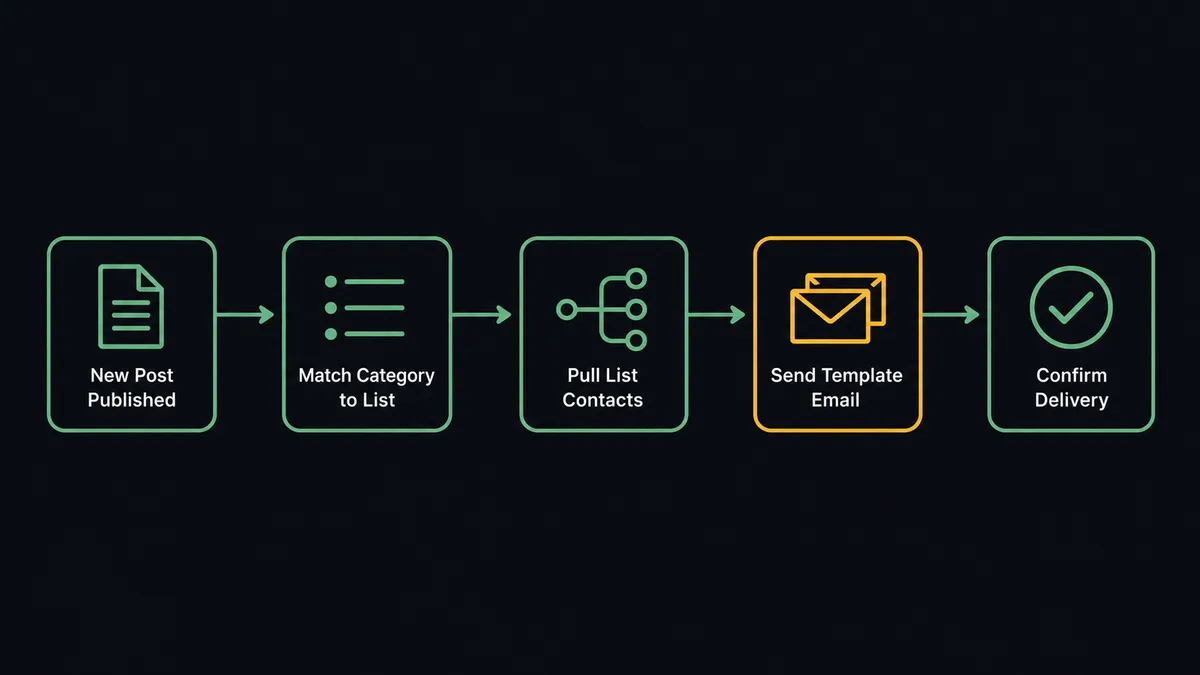
FlowRunner watches WordPress using the On New Published Post trigger, which fires the moment a post’s status flips to publish, with an optional category filter so only the sections you care about kick off a send. When it fires, the agent calls Get Post to read the title, excerpt, categories, and canonical URL. It calls Get Lists to find the Brevo audience that matches the post’s category, then Get List Contacts to pull the recipients in that segment. Category matching means a post filed under “Pricing” and a post filed under “Engineering Blog” can reach entirely different audiences, instead of every post blasting the whole list.
With the recipients and post content in hand, the agent calls Send Template Email for the matching template, merging the post title, excerpt, and link into the template’s dynamic variables. Afterward, it calls Get Transactional Emails to confirm the sends actually queued, which gives you a delivery log without anyone checking manually.
The reverse direction runs off WordPress’s On New Comment trigger. When a reader comments, the agent calls Create Contact, or Update Contact if the person already exists in Brevo, to capture them, then Add Contacts to List to enroll them in a “Blog Engaged” segment, and Create Note to attach the comment text as context. A comment that reads like a sales question can also trigger Create Task, assigning a rep to follow up with the full context already attached.
Can an AI agent run it? (and why a human stays in the loop)
A simple sync tool would fire the trigger and send to whatever list is hardcoded, every time, regardless of size or content. An AI agent reads the post and the matched audience and decides whether this particular send is routine or worth a second look before it acts.
Here’s the decision moment that matters. A post filed under “Engineering Blog” maps to a list of a few hundred contacts, well under the configured threshold, so the agent sends the announcement the moment On New Published Post fires. A post filed under “Pricing Changes” maps to the full “Product Updates” list at 18,400 contacts, well above it. The agent recognizes that difference and, for the larger send, does not proceed on its own. It invokes a human-in-loop flow as a callable tool: it posts to the marketing manager’s Slack channel with the list name, the contact count, the post title, and a link to the rendered template, then asks whether to send or hold for edits. The workflow pauses. The manager reviews the copy and the audience, approves or requests a change, and the agent resumes with that decision, the approver’s identity, and the timestamp captured in the audit trail.
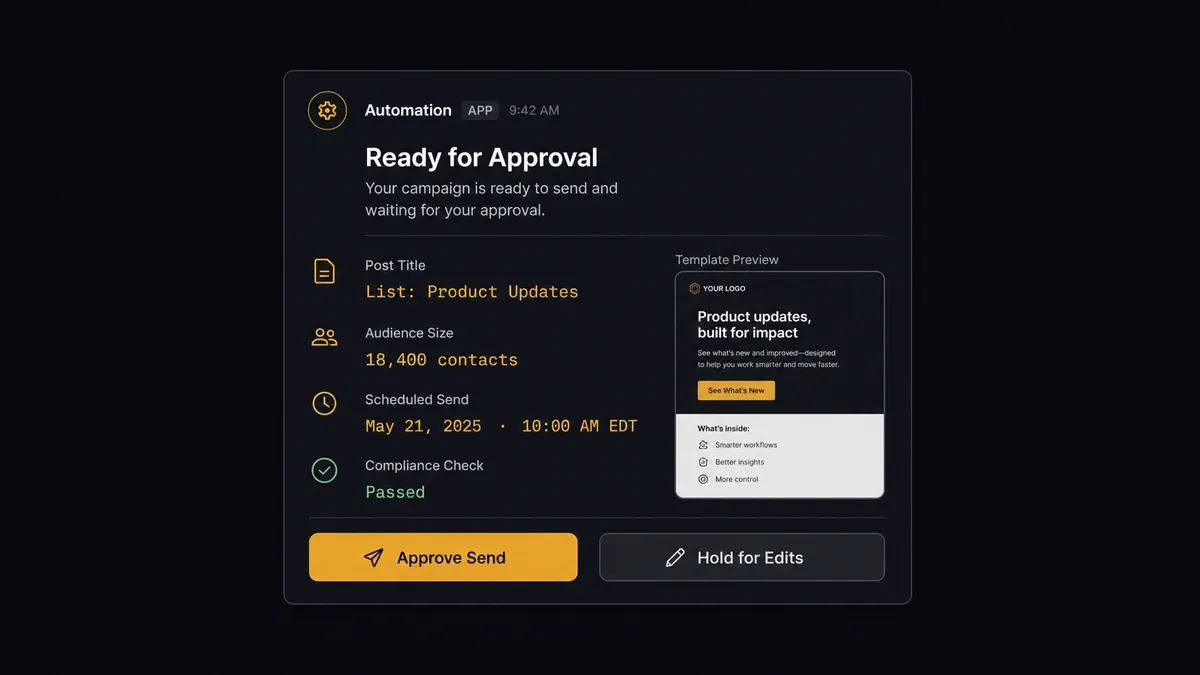
This is what prospects call a digital andon cord: the agent stops the line the moment a send crosses from routine to consequential, instead of applying one flat rule to every post. It is not a sync tool quietly moving data. It knows when to stop and ask.
FlowRunner vs the tool you’re probably comparing
If you built this connection on Zapier, you have a trigger-action zap: new post detected, email sent, every time, to whatever list you hardcoded when you built it. Zapier is genuinely fast to set up for exactly that kind of single-path rule, and its library covers both Brevo and WordPress already. What it does not do natively is reason about which list actually fits a given post, or pause a send because this particular audience is larger than usual.
| Feature | Zapier | FlowRunner |
|---|---|---|
| Basic trigger-action connection | Yes, fast to set up | Yes, same speed |
| Category-to-audience matching | Requires manual Filter and Paths configuration per category | Agent reads the post and matches the list by judgment |
| Native human approval step | Not native (requires a separate Slack integration wired by hand) | Native callable tool; agent invokes it based on context |
| Audit trail of send approvals | No | Yes; approver identity and timestamp captured |
| Unlimited users on every tier | No (seat-based pricing) | Yes |
| Bring your own AI keys | No | Yes (BYOK model) |
Before and after
| Category | Before | After |
|---|---|---|
| Post announcements | A new post gets shared to Slack or social whenever someone notices, with no fixed timing | On New Published Post kicks off the Brevo send the moment the post goes live |
| Audience matching | Whoever sends the announcement guesses which list fits, or emails everyone | Agent maps the post’s category to the matching Brevo list automatically |
| Comment-to-contact capture | Engaged commenters sit in the WordPress moderation queue and never reach the CRM | Commenters become Brevo contacts with the original comment attached as a note |
| Large sends | A large-list email goes out with no review step | Sends above the configured subscriber threshold pause for marketing manager approval |
| Channel data | Email, CRM contacts, and the blog drift out of sync with each other | A single agent decision updates the send, the contact record, and the list membership together |
What you can build
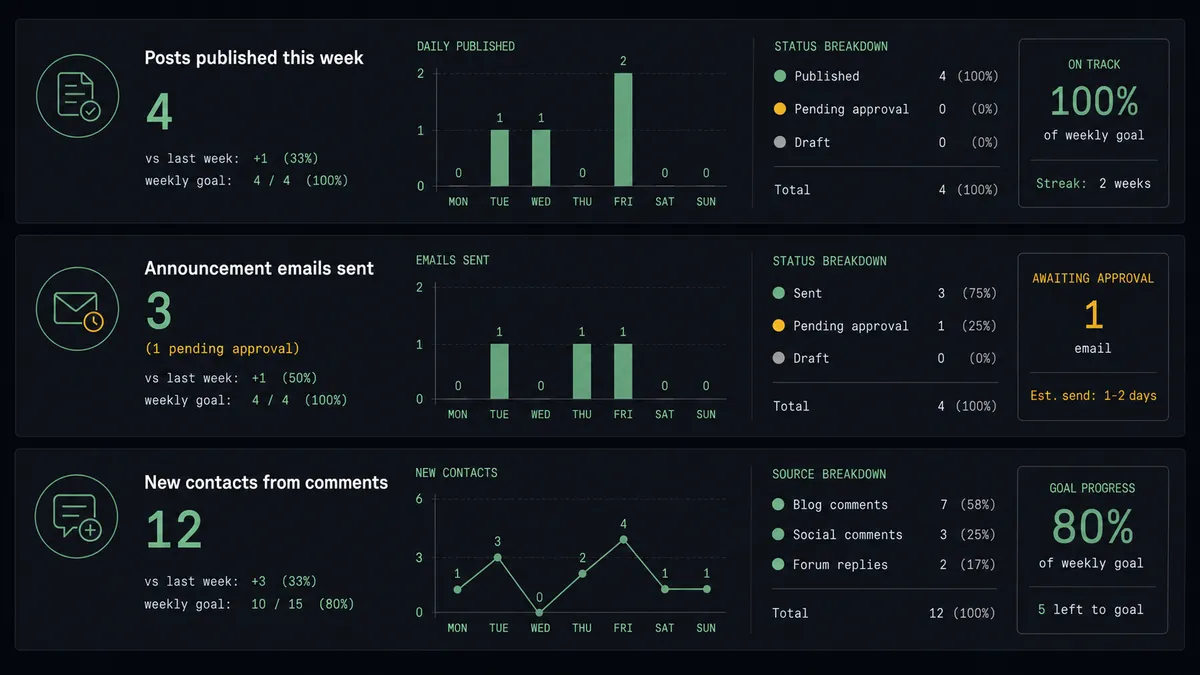
New post announcement to the right list. When On New Published Post fires, the agent calls Get Post for the title, excerpt, and category, matches it to a Brevo list with Get Lists, and calls Send Template Email to every contact returned by Get List Contacts. Large-list sends pause for a marketing manager’s approval first.
Comment-to-contact capture. When On New Comment fires, the agent calls Create Contact, or Update Contact if the commenter already exists, to add them to Brevo, then Add Contacts to List to enroll them in a “Blog Engaged” segment and Create Note to attach the original comment.
Weekly content performance digest. Every Monday, the agent calls Get Email Statistics for the week’s announcement sends and List Posts for what published, then posts a single summary that ties post output to email reach without anyone pulling two reports.
Lead handoff from high-intent comments. When a comment reads like a sales question, the agent calls Create Task in Brevo to notify a rep, with the comment content and post URL attached through Create Note, so the follow-up has full context from the first message.
Draft, approve, announce. The agent stages posts with Create Post at status draft; an editor approves the flip to publish, WordPress’s own human-in-loop step. The moment the post goes live, the announcement flow above takes over on its own, with its own separate approval gate for large sends.
Common questions
Is it free to connect Brevo and WordPress on FlowRunner? FlowRunner has a free plan with 100 executions a month, every integration included, and no credit card required, and new accounts get 14 days of Professional on top. Beyond the free plan, Growth runs $45/mo for 12,000 executions and includes both the Brevo and WordPress connectors.
Can I self-host the Brevo and WordPress connection? Yes. FlowRunner offers a free self-hosted Community Edition and a self-hosted Enterprise tier with multi-instance clustering and a full compliance suite. Both include the same connector library as the cloud-hosted tiers.
Does the agent need my own API keys for Brevo and WordPress? Yes. FlowRunner uses a bring-your-own-keys model. You connect Brevo with its API key and your WordPress site with an Application Password generated from your WordPress user profile. Credentials stay in your environment.
What happens when the agent isn’t sure whether to send an announcement to a large list? It stops and routes the decision to the marketing manager through Slack, email, or another channel, with the post title, the list name, and the recipient count attached. The agent resumes only after a person approves or edits the send, and the decision is captured in the audit trail.
Can new posts route to a specific Brevo audience based on category? Yes. On New Published Post supports an optional category filter, and the agent matches that category to the right Brevo list with Get Lists before pulling recipients with Get List Contacts, so a pricing post and an engineering post can reach different audiences.
What happens to blog comments that read like sales inquiries? The agent can create a Brevo contact for the commenter with Create Contact, attach the comment text with Create Note, and open a Create Task assigned to a rep, so an engaged reader turns into a tracked follow-up instead of an unread comment.
Getting started
FlowRunner has a free plan with 100 executions a month, every integration included, and no credit card required, and new accounts get 14 days of Professional on top. Every plan includes unlimited users and unlimited workflows.
Both connectors are ready to use:
Start building at flowrunner.ai or book a 30-minute walkthrough at calendly.com/flowrunner/intro.
Frequently asked questions
Is it free to connect Brevo and WordPress on FlowRunner?
FlowRunner has a free plan with 100 executions a month, every integration included, and no credit card required, and new accounts get 14 days of Professional on top. Beyond the free plan, Growth runs $45/mo for 12,000 executions and includes both the Brevo and WordPress connectors.
Can I self-host the Brevo and WordPress connection?
Yes. FlowRunner offers a free self-hosted Community Edition and a self-hosted Enterprise tier with multi-instance clustering and a full compliance suite. Both include the same connector library as the cloud-hosted tiers.
Does the agent need my own API keys for Brevo and WordPress?
Yes. FlowRunner uses a bring-your-own-keys model. You connect Brevo with its API key and your WordPress site with an Application Password generated from your WordPress user profile. Credentials stay in your environment.
What happens when the agent isn't sure whether to send an announcement to a large list?
It stops and routes the decision to the marketing manager through Slack, email, or another channel, with the post title, the list name, and the recipient count attached. The agent resumes only after a person approves or edits the send, and the decision is captured in the audit trail.
Can new posts route to a specific Brevo audience based on category?
Yes. On New Published Post supports an optional category filter, and the agent matches that category to the right Brevo list with Get Lists before pulling recipients with Get List Contacts, so a pricing post and an engineering post can reach different audiences.
What happens to blog comments that read like sales inquiries?
The agent can create a Brevo contact for the commenter with Create Contact, attach the comment text with Create Note, and open a Create Task assigned to a rep, so an engaged reader turns into a tracked follow-up instead of an unread comment.